MS CRM : Direct status/status reasons updates work in Plugins, not in Workflows or Power Automate

What is Issue?

As developers working with MS Dynamics CRM, we often encounter tricky issues. Recently, I faced a situation where I needed to update the quote status from Draft to Closed and then revise it. To achieve this, I created a CRM Action that directly updated the quote status to Closed. When this action was invoked from a plugin (triggered by an automated process), it worked as expected.

However, another requirement was to create an on‑demand workflow that performed the same process as the automated plugin. While the workflow logic followed the plugin’s behavior, the issue arose when executing the action. Running the on‑demand workflow displayed the error: “Quote status cannot be changed to Closed. Please use the CloseQuoteRequest instead.”. In other words, the status update succeeded when called from a plugin but failed when executed through an on‑demand workflow.

The Reason-

In CRM, on‑demand workflows, plugins, and Power Automate each have their own execution behavior. Additionally, certain actions and status changes—such as Revise Quote, Close Quote, or Win/Lose Opportunity—are governed by CRM‑defined business rules that must be strictly followed.

Solution-

To resolve such issues, it is important to understand the different behaviors of plugins, workflows, and Power Automate flows in CRM.

When an action is executed from a plugin, it runs within the CRM pipeline and in the same transaction, where the update is treated as an UpdateRequest. Plugins can sometimes bypass certain UI validations and allow direct updates. Although plugins run in the calling user’s context, the organization service controls the transaction and leverages SDK messages internally. This makes it possible to perform update operations in special cases.

In contrast, when updates are performed through a workflow or Power Automate flow, they run in the workflow engine, which operates outside the transaction and enforces stricter validations. Additionally, when a workflow or flow is triggered on‑demand by a user, CRM applies UI validations and executes in the actual user context. These validations ensure that actions follow the defined business process sequence.

For example, when revising a quote, CRM closes the current quote and creates a new draft version for editing. It automatically increments the revision ID and maintains audit history.

Even though plugins may allow direct status or status reason updates, it is always recommended to use the appropriate CRM message (such as CloseQuoteRequest) within plugins as well. This ensures consistency and adherence to the same business process across workflows, plugins, and Power Automate flows.

Below are some of the special messages that should be used to avoid issues like this.

Module‑wise Entity List with Special Messages

📞 Service Module

EntityMessage/RequestPurpose
Case (Incident)CloseIncidentRequestCloses a case with resolution details

💼 Sales Module

EntityMessage/RequestPurpose
OpportunityWinOpportunityRequestMarks opportunity as won (requires revenue, date)
OpportunityLoseOpportunityRequestMarks opportunity as lost (requires reason, date)
QuoteCloseQuoteRequestCloses a quote (won/lost)
QuoteReviseQuoteRequestCreates a new version of a quote for editing
Sales OrderCancelSalesOrderRequestCancels a sales order
Sales OrderFulfillSalesOrderRequestMarks a sales order as fulfilled
InvoiceCancelInvoiceRequestCancels an invoice
InvoiceSettleInvoiceRequestMarks an invoice as paid/settled
ContractCancelContractRequestCancels a contract
ContractRenewContractRequestRenews a contract
ContractCloneContractRequestCreates a copy of a contract

⚙️ Common / Cross‑Module

Entity TypeMessage/RequestPurpose
Standard Entities (without dedicated close/cancel messages)SetStateRequestChanges state/status for entities that don’t have a dedicated message
Custom EntitiesUpdateRequestModern alternative for changing state/status safely
Custom EntitiesSetStateRequestUsed for custom entities when no special message exists

This is another key factor to consider when choosing a plugin over a workflow. Check out the rest of this blog for more differences between plugins and workflows.

Hope this will help…
Enjoy MS CRM!!!

Follow on Facebook- FB: MSCRM16Tech

Power Apps : Form Controls always remains Unsaved

What is Issue?

Power Apps has many useful controls that makes development faster and easier. Form control is one of the control using which user can create, edit or view records. With minimal configuration these forms can be implemented quickly in Power Apps.

I had one scenario that where user want to save form automatically when user moves from one tab to another tab in app. The condition was automatic save will be only if form is having unsaved changes.

When I implemented this, even if user has not changed any value on the form, form was submitted and saved the changes every time.

The Reason-

I used condition If(Form.Unsaved, submitForm(Form1)). But every time Form was submitted and I noticed the form was always unsaved.

Solution-

While working with Edit Forms, You need to consider few things-

  1. Use of Unsaved, Updates and LastSubmit properties of form
    • Unsaved – Form1.Unsaved : This will either true or false. If any field on form updated, It will return true.
    • Updates – Form1.Updates : This holds the local object with updated values of the form1 item before submit.
    • LastSubmit – Form1.LastSubmit : This returns object of form1 item which was last submitted.
  2. Setting defaults on form fields
    • Lots of the fields user want to set with default values manually. But there is side effect on use of Unsaved property of Form if not set properly.
    • Setting default also triggers the OnChange event of the field whenever form item gets changed or Field value is defaulted with some condition.

So In my case, I observed that I set few fields with default values and that caused the form remains in Unsaved always true.

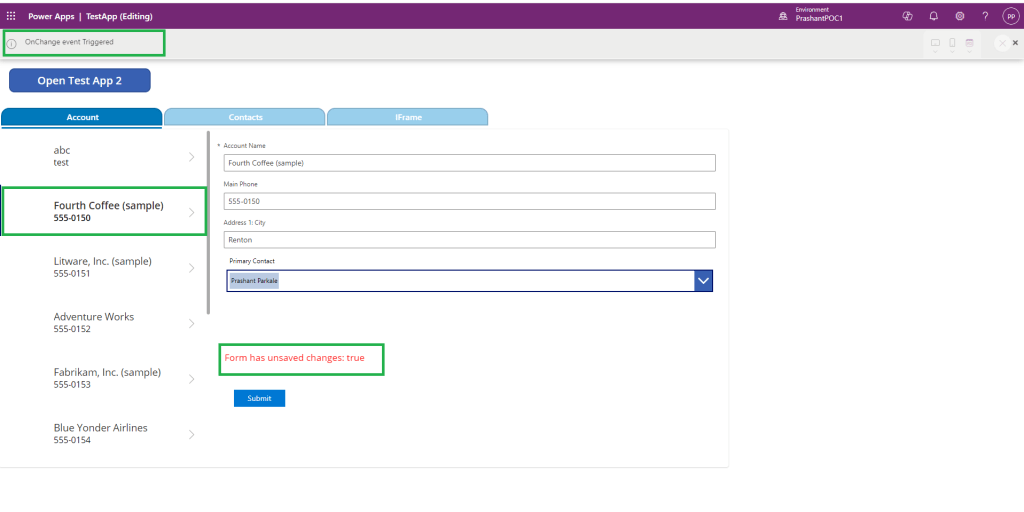
Consider, I have gallery form Account and edit form that allows me to edit the Account selected in gallery.

There is the Label in red that reads “Form has unsaved changed :false”.
For this label I used formula in Text : “Form has unsaved changes : ” & Form1.Unsaved

Initially, I didn’t set any manual default value for Primary Contact field.
That shows, Form1.Unsaved = false

Now, On Account, I want to set the default Primary Contact as Contact with email address “p@p.com”.

As soon as I added default value to the form, Label started showing “Form has unsaved changes : true”

And just to check whether this also triggers the OnChange event of the field, I added Notify(“OnChange event Triggered”);

I ran the App and then changed the gallery selection, It started showing the unsaved changes and OnChange Notification on screen.

To overcome Unsaved changes I modified a DefaultItems property of Primary contact-
If(IsBlank(Parent.Default),First(Filter(Contacts, Email=”p@p.com”)),Parent.Default)

What I am doing here is, if there is already value in Primary Contact field, don’t set Contact with email address “p@p.com”.

Now let’s try changing Gallery Item, No unsaved changes any more, but as form Item is changed, OnChange event of that field will trigger.

So, be careful while adding some logic in OnChange event of field when Form Item is going to change.

Hope this will help…
Enjoy MS CRM!!!

Follow on Facebook- FB: MSCRM16Tech

MS Dynamics 365 : Detect Browser Extensions/add-ons for D365/Power Apps installed on Users machine

What is Issue?

MS Dynamics 365 provides strong security model for data within the Dynamics 365 systems and as a organization, Dynamics 365 team works hard to set business processes by setting requirement level on columns, disabling fields on the form. But there are few extensions/add-ons available on internet for browser which changes these requirement levels and enables columns to make data change. So how to detect the users who installed these extensions on the browser?

The Reason-

These extensions are developed for development as well as operational purpose. But if this is exposed to end user, it may lead to serious data breach.

Solution-

In this case there are 2 options –

  1. Ask your organization IT team to restrict these extension to download/install into the browsers using Network Policies.
  2. Detect these extensions in Dynamics 365 and Perform some action like send notification to user for unsupported use of extension or warn the user for data security breach.

1st option will block extension for everyone in organization, so no development team or operations team will be able to download and install the extension on browser. This seems disadvantage for developers and operation teams who are responsible for customizations and data into system. Now 2nd option can help in this scenario.

Let’s see how we can detect any extension from our Dynamics 365 –

  • Identify the extension scripts –
    Every extension has some scripts to be loaded into browser , so we need to identify these scripts and its location in browser. (let’s considering chrome extension)
   var srcXYZExtension = "chrome-extension://{Extension ID}/scripts/xxxxxxx.js";
  • Detect the extension script using javascript –
    If you identified the script, try to load in the system using javascript. If it loads successfully, that means browser is having the extension installed, if it failed to load, then no extension installed on the browser.
    var s = document.createElement('script');
    s.id = srcId;
    s.onload = function () { CallSuccessMethod(srcId) };
    s.onerror = function () { console.log("js " + src + " not found"); };
    s.src = src;
    document.body.appendChild(s);
  • Now, if script is detected then do some Action –
    Example – Setting up the Global Notification in the app
   var TriggerActionObj =
    {
        actionLabel: "Learn More",
        eventHandler: function () {
            Xrm.Navigation.openUrl("https://mscrm16tech.com");
        }
    };
    var NotificationObj =
    {
        type: 2,
        level: 2,
        message: "Unsupported Extension on Browser detected for Dynamics 365 CRM! Please uninstall " + srcId + " the CRM extensions.",
        showCloseButton: false,
        action: TriggerActionObj
    };
        Xrm.App.addGlobalNotification(NotificationObj).then(
            function success(result) {
                console.log("Notification created with ID: " + result);
            },
            function (error) {
                console.log(error.message);
            }
        );

Here is the complete code-


function CheckScriptOnLoad(executionContext) {
    var srcXYZExtensionID = "XYZ Extension for Dynamics 365/Power Apps";
    var srcXYZExtension = "chrome-extension://{Extension ID}/scripts/xxxxxxx.js";
        setTimeout(function () {
            Ext_Detect(srcXYZExtension, srcXYZExtensionID, executionContext);
        }, 3000);
}
function Ext_Detect(src, srcId, executionContext) {
    var s = document.createElement('script');
    s.id = srcId;
    s.onload = function () { CallSuccessMethod(srcId) };
    s.onerror = function () { console.log("js " + src + " not found"); };
    s.src = src;
    document.body.appendChild(s);
}

function CallSuccessMethod(srcId) {
    var TriggerActionObj =
    {
        actionLabel: "Learn More",
        eventHandler: function () {
            Xrm.Navigation.openUrl("https://mscrm16tech.com");
        }
    };
    var NotificationObj =
    {
        type: 2,
        level: 2,
        message: "Unsupported Extension on Browser detected for Dynamics 365 CRM! Please uninstall " + srcId + " the CRM extensions.",
        showCloseButton: false,
        action: TriggerActionObj
    };
        Xrm.App.addGlobalNotification(NotificationObj).then(
            function success(result) {
                console.log("Notification created with ID: " + result);
            },
            function (error) {
                console.log(error.message);
            }
        );
}

Our script is ready. But how to use it? where to add this?

You can update the Application Ribbon of your Dynamics 365 Organization.

Add the hidden button on SubGrids/Home grid and add the custom enable rule. Call “CheckScriptOnLoad” function on enable rule of the hidden button. In my case I have added it on form’s ribbon on Application Ribbon.

Once Ribbon is published, reload the Dynamics 365 organization. On navigating to any table/record form, If extension is installed/enabled then it will show Global Notification, else no notification will be displayed.

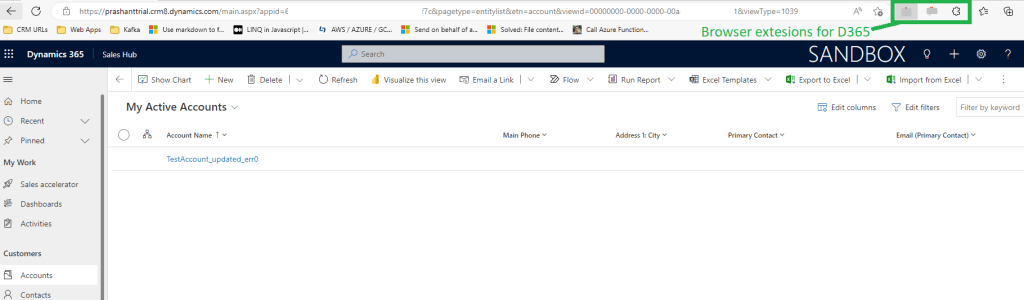
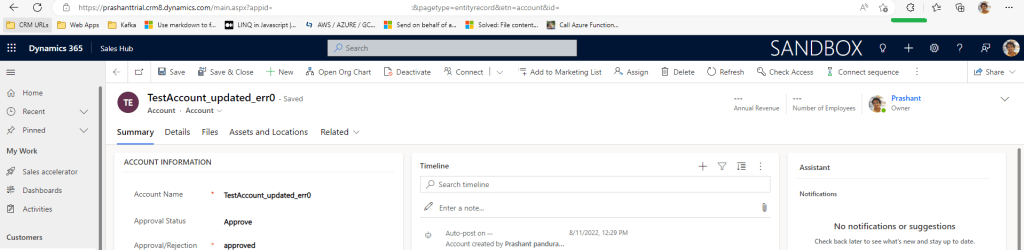
Screenshot from my Organization-

When Extension is Enabled/Installed
When Extension is Disabled/Uninstalled

And it worked. Yay!!

Hope this will help…
Enjoy MS CRM!!!

Follow on Facebook- FB: MSCRM16Tech

MS Dynamics 365 CE(CRM) : Advanced find not visible anymore / Learn Modern Advanced Find for Model driven Apps

What is Issue?

Advanced find is the powerful tool for every MS Dynamics 365 CRM user for querying and reporting the data. But now this tool is not visible in the MS Dynamics 365 anymore. Users are complaining and reporting the issue. Users are not familiar or aware of the new way to query the data in CRM.

The Reason-

The familiar classic Advanced Find icon in the navigation bar is replaced by a ‘modern advanced search’ for all Dynamics 365 modules and model-driven apps. With the 2022 Release Wave 2 October 2022 update to your environment, a new modern advanced find experience is enabled by default.

Solution-

MS Dynamics 365 Admin user can enable or disable the “Modern Advance find for model-driven Apps” and classic Advanced find options. Admin can follow the below steps to enable new modern advanced find in Dataverse and enable/disable classic Advanced find option for users-

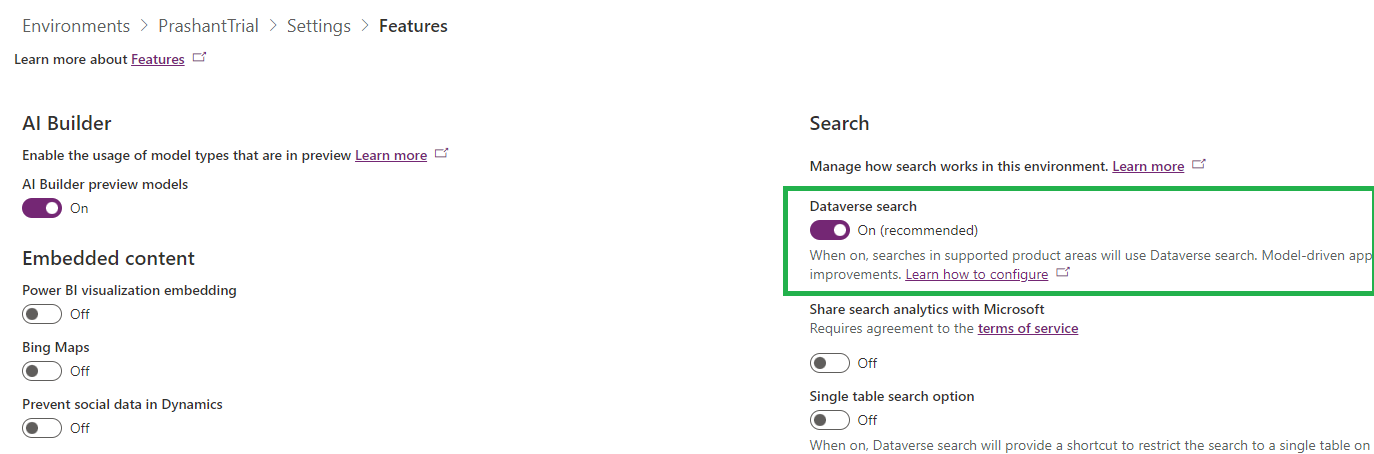
Before enabling the advanced search, admin have to enable the Dataverse search. Let’s see how to enable it.

My instance is not showing any search box right now and advanced find option is available.(So 2022 Release Wave 2 is not enabled for my instance yet)

Login to the Power Platform Admin Portal and open the desired environment. Go to the settings -> Features
Enable the “Dataverse search”. It will start showing the search box on the Navigation bar.

Now let’s see the steps to enable/disable classic Advanced Find and “Modern Advanced find”.

In the Power Platform Admin Portal Settings -> Features enable/disable “Modern advanced find in model-driven apps” option. I am enabling the modern advanced search for my environment by enabling the option-(You can also allow user to show and hide System views once modern advanced find is enabled)

Yay!!.. “Modern Advanced Find” is enable now.

Let’s see how useful it is and let’s compare the features with classic advance find.

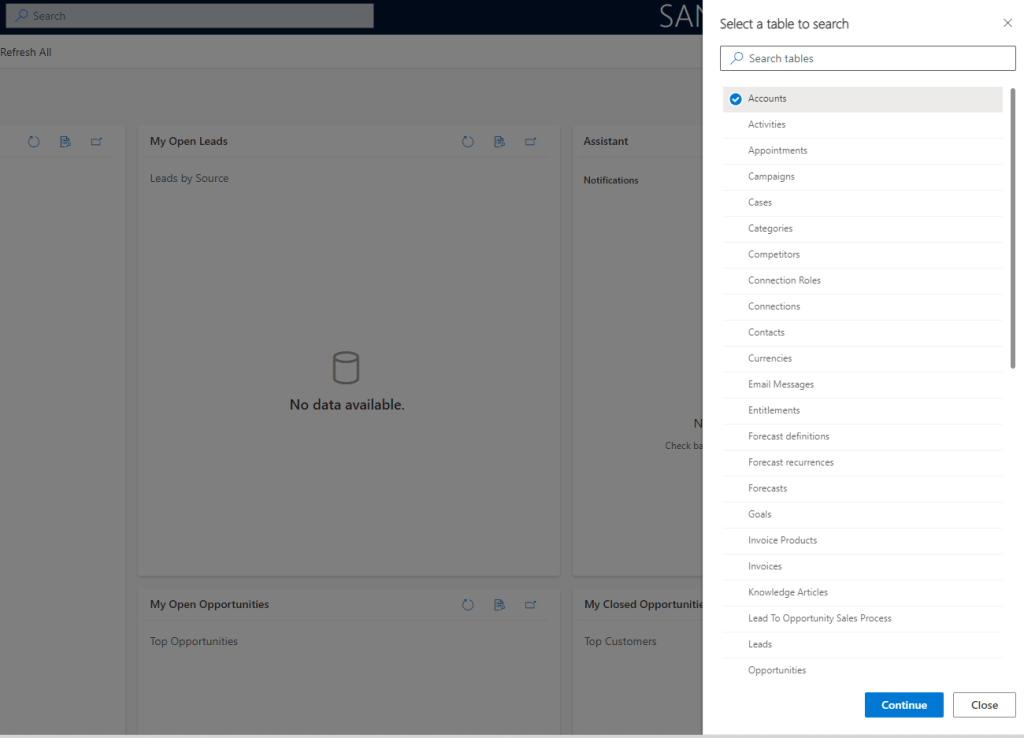
Once you click on “Search for Rows in a table using Advanced Filter”, it will ask you to select table, just like “Look For” drop-down in classic Advanced Find. Select table and click on continue.

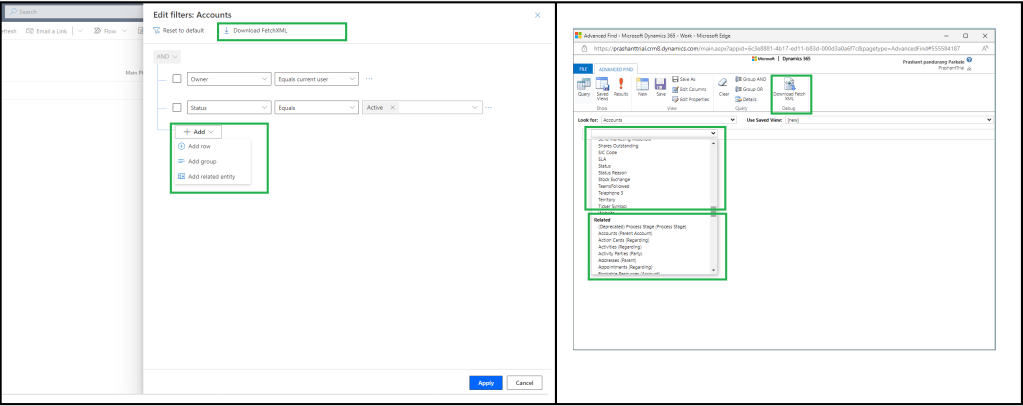
It will open the Edit filter window, where you can add the search criteria.

All the querying features available on the window similar to classic Advanced find. Adding criteria using columns within table or columns from related tables(entities).

For developers, Download FetchXML is also available on same window.

Once filter is applied, you can edit the columns-> re-arrange the columns, add columns from table or from related tables.

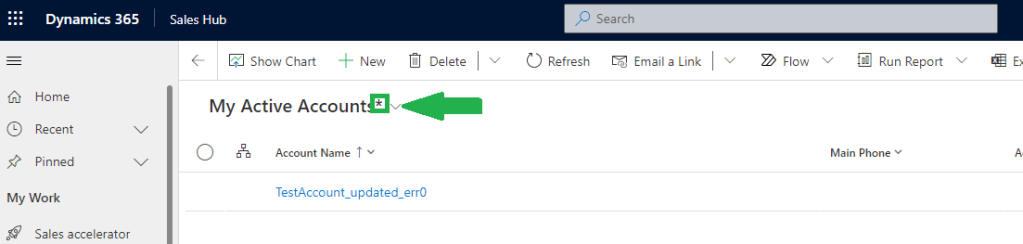
Once you apply the filter it will show the table view name with *, which will indicate the unsaved view.

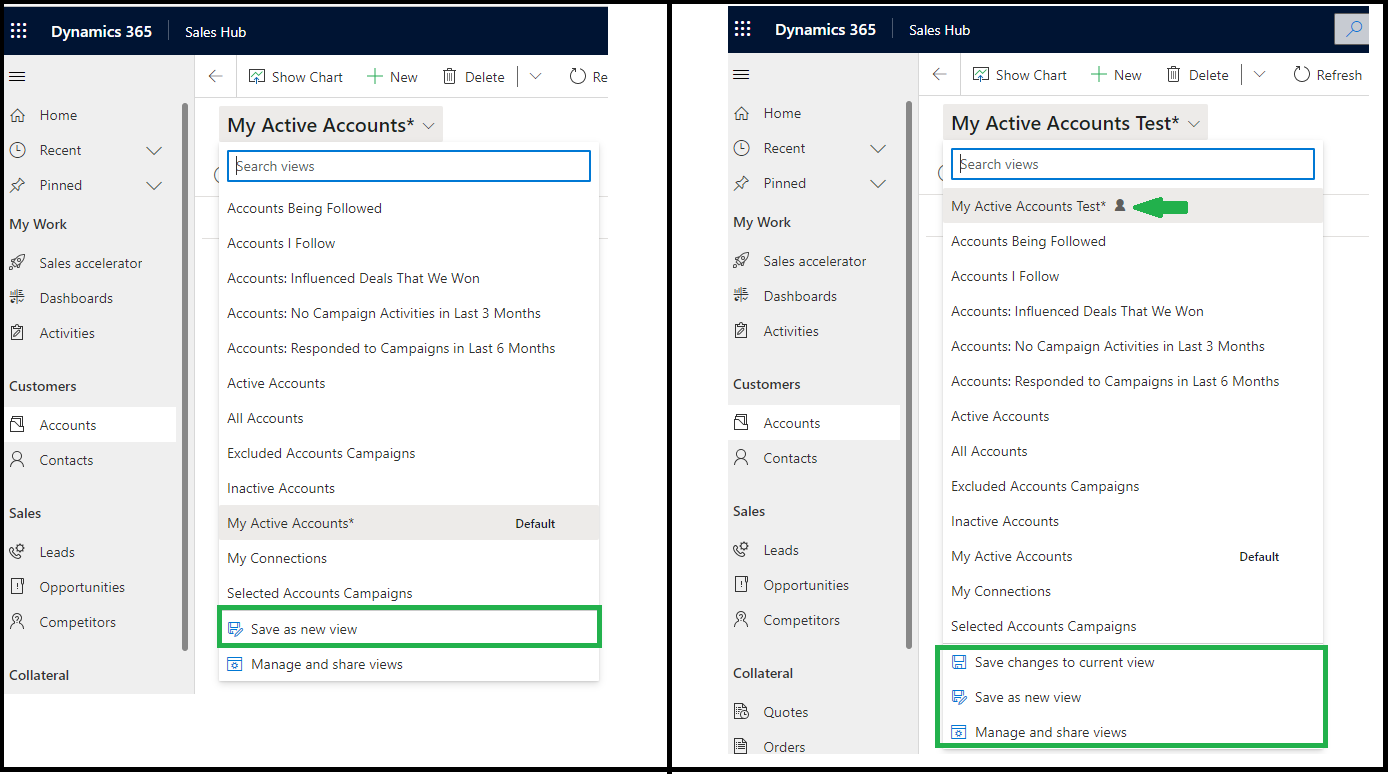
You can save the view, you can save as existing personal view and manage views with options like- Show/Hide, Share, Assign, Delete, Deactivate, Download FetchXML, etc.

You can also identify the personal views with “user icon” at the end of view name in list.

Now if you want to export the data in excel, you have the similar options on Ribbon buttons similar to the classic advanced find.

So if you don’t see advanced find, don’t panic. You have new way to use advanced search in MS Dynamics 365(model driven apps).

Hope this will help…
Enjoy Ms CRM!!!

Follow on Facebook- FB: MSCRM16Tech

MS Power Automate : Act on Approvals directly from Dynamics CRM on column value change/Button click

What is Issue?

There are lots of business scenarios where the approval requires on the records before proceeding or pushing it to next levels or complete the process. For these scenarios now we have the Power Automate Approvals. When approvals are triggered, it goes to the approvers mailbox to approve it, then approver can happily act on it without navigating to the other systems. But in some cases, Approver gets lots of the approval requests and he need to check each request by navigating to the system. After checking the approval again he need to switch the screen and approve it from mailbox. Now the frustrated approver says, “I can see all my requested records in system directly, I don’t want to go back to the mailbox again!!” and he/she will ask you “is it possible to approve the request from the system only?”

The Reason-

It is easier to act on approval from email which is very quick and easy process. But how the approval action works in power automate is something not explored. So I can say less exposure to the Approval tables in Dataverse.

Solution-

Power Automate provides Approval actions. Once you add it on your flow, system automatically installs some solutions containing approval tables and components in your selected environment(instance).

First lets have look at these tables-

  1. Approval – contains the Approval details
  2. Approval Request – contains the information of who requested and who is approver
  3. Approval response – contains the information about approval responses
  4. Flow Approval – contains the Approval action details which is used in actual power automate flow

In the case where you have to mark the approvals complete and resume the approval flow, you have to look for Approval table and Flow Approval table.

Lets see an example of flow-

I am using column on Account form to act (approve/reject) the approval for the account without using my mailbox to approve the request.

On change of Approval Status column value my approval action should be tracked and flow should be proceed as per my response. On completion of the request I should receive the mail saying approval succeeded or approval rejected.

This is how my approval flow looks like- I am manually triggering the approval for the demo purpose.

When I ran this create Approval Flow I received below approval request on my mailbox with the account URL in link in it.

Let’s see the another flow which will trigger when I update Approval Status column value.

Next step will be finding the correct approval record based on Account ID. So as I mentioned I have added the Item Link to the approval with record id, so I can query the approval where Item Link contains the account id for which flow is triggered. Just for the information you can see the Approval table column which I am using for this purpose-

So next step on my flow is to list the rows from Approval table where linked item contains account id and pending for approval-

Once I got the response then I can find the Flow approvals associated with the Approval record and from this Flow Approval row “Flow Notification URI” column value is the useful URL for me to send the response to the approval request.

Before sending the response to Approval flow using Flow Notification URL, I am making sure the my Approval is completed, so that it will not keep waiting for my response even we completed the approval flow. So I am setting status reason to Completed, Stage to Complete, Result with the Approval status label value(optional) and Status as inactive.

Before sending response to the Approval using “Flow Notification URI”, we need to prepare some json body. It accepts any key value pair, but I am making sure that I am preparing the response similar to the json structure when we approve the request from email request. Once response body is prepared, I am sending the post request to the “Flow Notification URI” with composed json body.

So my completed flow looks like below-

My flow is ready for testing-

When I am approving/ rejecting the request , My approval flow is resumed and completed, and I received mail as per my action –

When I navigated to the Approval request in my mailbox, It is showing that Others have already completed this request. Yay!!!… it worked.

So that’s it.

You can change the trigger of flows according to your requirement. For button click – change it to HTTP trigger and pass the required information on click of buttons.

Hope this will help…
Enjoy Ms CRM!!!

Follow on Facebook- FB: MSCRM16Tech