Set “Look For” for particular entities in Multi-entity Lookup Field like party List

What is the Issue?

Developers got requirement once in his development career to set the lookup value with only some particular entities like he only needs “users”, “contacts” and restrict other entity’s records to be selected. But he/she have to implement this for some conditions like on change of some field value. But this kind of lookup always shows all the entities in lookup.

The Reason-

This lookup field shows all the entities as it’s default OOB behavior of the multi-entity Lookup (Party List).

 Solution-

You can handle this situation with the help of client side scripting (JavaScript).

Lets have Example-

I want to show only “Contact” and “User” records in “To”,”Cc” and “Bcc” fields (Party List) of Email Entity depending on “Email Behavior” option set field value.

SetLookupForEx1

I have 2 conditions here –

  1. Default E-Mail : should show all the entities records in lookup field as default behavior of field.
    SetLookupFor1
  2. E-mail To Contact or Users Only: should show only “Contact” and “User” entities records in lookup field and all others should be hidden.
    SetLookupFor3

Lets do it with Javascript here-

SetLookupFor2

Add function “filterOnLoad” at locations-
1. “onLoad” event of form with “Pass execution Context as first Argument” checked.
2. “onChange” event of “EMail Behavior” field with “Pass execution Context as first Argument” checked.

Publish your customization and here its done…

Please Note : for “From” field has different behavior than these all above fields. “From” field is lookup/PartyList for only “Users” and “Queues”.
SetLookupFor4


You can refer My other blog post related to this one – Filter Required/Regarding (partylist data type) fields…

Hope this will help you.

Enjoy MS CRM!!!

Change behaviour of + Button on subgrid(Add new/Add existing)

What is the Issue?

When you click on + Button on subgrid ,sometimes it opens new record and sometimes behaves like add existing by opening search box for existing records.

The Reason –

This behaviour of + button depends on the association between the entities. Adding new record will strictly associates records and add existing will allow you to associate records if required.

Solution-

To change the behaviour of the + button you need to change requirement level of the lookup field of the entity on which you have subgrid i.e. parent entity.

For example- you have 2 entities – AEntity and BEntity.

AEntity contains subgrid of BEntity.

On BEntity form we have lookup field- AEntityLookup

Now behaviour will be decided on requirement level of AEntityLookup field.

1. If requirement level : Business Required

Then it will behave as Add new record of BEntity.

This will also change behaviour of record level delete button as record delete.

2. If requirement level : optional/business recommended

Then it will behave as Add Existing record of BEntity.

This will also change behaviour of record level delete button as record remove.

Try it..

Happy coding…!!!

Xrm Object Model v9.0 and greater

What is the Issue?

As of February 2017, the SDK extensions for Microsoft Dynamics 365 is deprecated, and won’t be supported in future releases of Dynamics 365, version 9.0 and beyond.

The Reason-

These extensions were added in Dynamics CRM 2013 to provide a simplified connection class, strong type generation for solutions, and web portal capabilities. These have been replaced with newer capabilities.

Solution-

The Xrm client APIs are deprecated in the current release to reorganize the Xrm client API object model to better align with the need of using the same client scripts without having to change them based on the context or the client (web client or the new Unified Interface) where they run. You should plan to use the new client APIs mentioned in the Replacement Client API column instead of the deprecated ones.

Following is the comparison for old Xrm Object Model and new one.-

Old Xrm Object model-

OldXrm

This Old Xrm Object Model is replaced with the below one-

FormContext

The Important change is Xrm.Page.Context is replaced with formContext i.e. executionContext.getFormContext.

Let’s see the example for new Xrm –

FormContextCode

For the information about environment we were using Xrm.Page.Context which is now replaced with Xrm.Utility.getGlobalContext.

We have 4 new namespaces for new Client APIs-
1. Xrm.Device
2. Xrm.Encoding
3. Xrm.Navigation
4. Xrm.WebApi

Also for your information below are some of the deprecated Client APIs with their replacements-

XrmObject

Enjoy Ms CRM!!!

Workflows vs Plugins in MS CRM

What is the Issue?

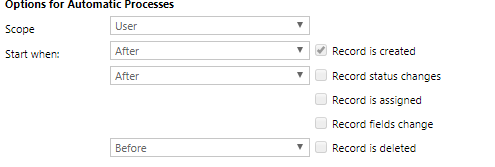
When to use workflows and when plugin? What is the difference in these two?

What is Confusion –

Many of the developers or MS CRM beginners get confused in some scenarios whether to go with Workflows or to go with Plugins, as both can be used and has ability to perform specific task at server side.

Solution –

Plugins and workflows have some specific and significant differences-

1. Workflow has specific set of event messages i.e. triggering points as below.
WF
On the other hand other than these basic event messages Plugin has huge set of event messages like AddItem, AddMember, GrantAccess, ModifyAccess, RemoveRelated and so on.

2. Workflows has limitations of Pre-event stages for some of the main events like delete has only before. And for plugin you can trigger the event on stages like pre-validation, pre-operation, post-operation. 

3. Some operations like deleting record from wizard workflow is not possible. So for this you can use custom workflow/Plugin.

One more simple rule you can remember- Whatever scenarios cannot be done with workflows, all that can be done using plugins.

Hope this will help you to understand Workflows and Plugins.

Enjoy MS CRM!!!

Ms Dynamics 365 :Plugin registration tool – Not able to connect to CRM Organization

What is the Issue?

When we try to connect MS Dynamics365 latest version (v9) using plug-in registration tool , it won’t connect the organisation showing some errors like-
1.pluginreg1

2.You don’t have permission to access any of the organizations in the Microsoft Dynamics CRM Online region that you specified. If you’re not sure which region your organization resides in, choose “Don’t know” for the CRM region and try again. Otherwise check with your CRM administrator.

The Reason-

The reason for these two errors are very different-

For issue 1- You don’t have latest version of sdk /Plugin registration tool.

For issue 2- You  are trying to connect to the org from the your private network with some particular domain.

Solutions-

Solution according to the issues-
For issue 1-
Download the latest plugin registration tool.
1. You can use msdn in which microsoft has provided power shell command to download the tool.
OR
2. Follow the step->
-Open Visual Studio
-Add new Project -> Class Library
-Right click on Project in Project explorer.
-Click on Manage Nuget Packages.
pluginreg2
-Search online for
prtDownload
PluginReg3
– Install the Nuget package and Close the window.
OR
-Alternative way to install nuget package you can use PM Console in Visual Studio-
-Use the following command-
PluginReg4
-This will download the latest Plugin Registration tool which needs to connect MS Dynamics 365 (V9.0)
-Now Open the Solution Location –
pluginreg5
-Navigate Location –
prtLocation
– You will find the plug in registration tool with latest SDKs.

Use this latest tool to connect MS Dynamics 365.

For issue 2-
If you are trying to connect CRM org with latest Plugin registration tool in your private network with some particular domain you will face the 2nd issue mentioned above.
To solve this issue you just need to open file “PluginRegistration.exe.config”
pluginreg6


And add the following Tag under the <Configuration> tag-
pluginReg7

Save file and close.
Now close the Plugin  Registration tool if any open and again start the tool. You will be able to connect your MS Dynamics 365 Organization.
Hope, this will help you.