Power Apps : Working with Tables with N:N (Many-to-Many) Relationships

What is Issue?

While working on Canvas Apps in PowerApps, how to deal with Dataverse Tables with N:N relationships ?

The Reason-

In PowerApps, while working with multiple Dataverse tables it is easy to write expressions/formulas with simple columns as well as 1:N (1-to-Many) relationships between tables. But when there are Dataverse tables with N:N (Many-to-Many) relationships, the intersecting table is not available to use directly.

Solution-

Let’s first understand Dataverse tables with N:N (Many-to-Many) relationship.

Suppose, we have 2 tables “Contact” and “Software Service”.

“Software Service” table have lookup “Service Owner” that creates 1:N (1-to-Many) relationship between “Contact” and “Software Service” tables.

“Software Service” also needs multiple “Service Engineers”, So I have created N:N (Many-to-Many) relationship between “Software Service” and “Contact” tables.

Now I have scenario, In Canvas App I have to show list “Software Services” associated with “Contact” as either “Service Owner” or “Service Engineer”. And when it is “Service Engineer”, display his name in “Service Engineer” Column in the list else the “Service Engineer” Column will be blank.

Suppose, “Service 1” is having “Prashant Parkale” (contact record) as added “Service Owner” and contact records “Iron Man” and “Spider Man” added as “Service Engineers”.
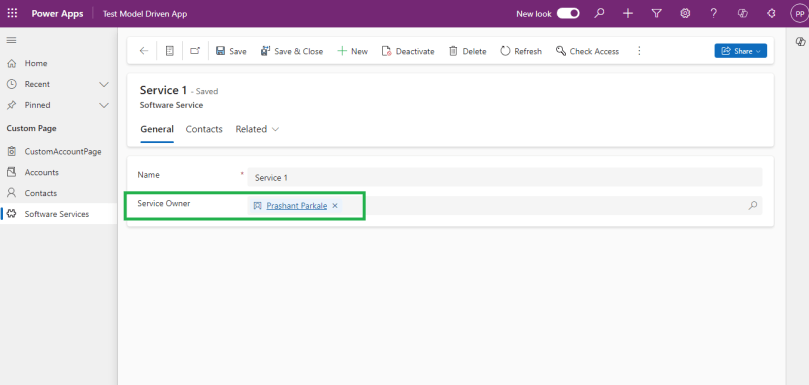
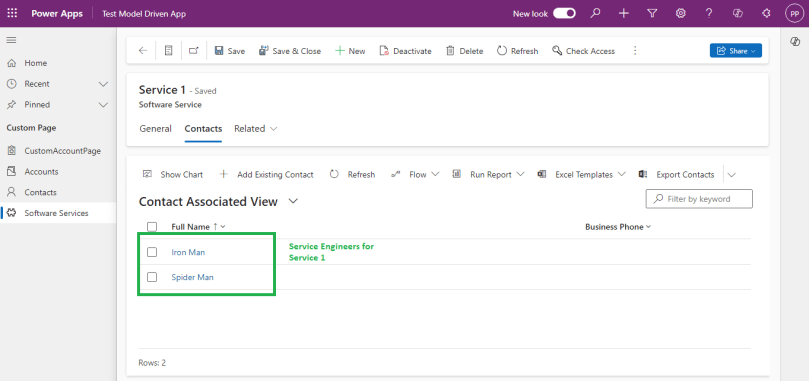
If I open “Prashant Parkale” contact record, It should list “Service 1” record with “Service Engineer” column as blank.

If I open “Iron Man” or “Spider Man” contact record, it should list “Service 1” record with “Service Engineer” column as respective contact record name.

Let’s create Canvas App to embed in Contact form.

  • Create Canvas App with “ModelDrivenFormIntegration” enabled to get current contact record context.
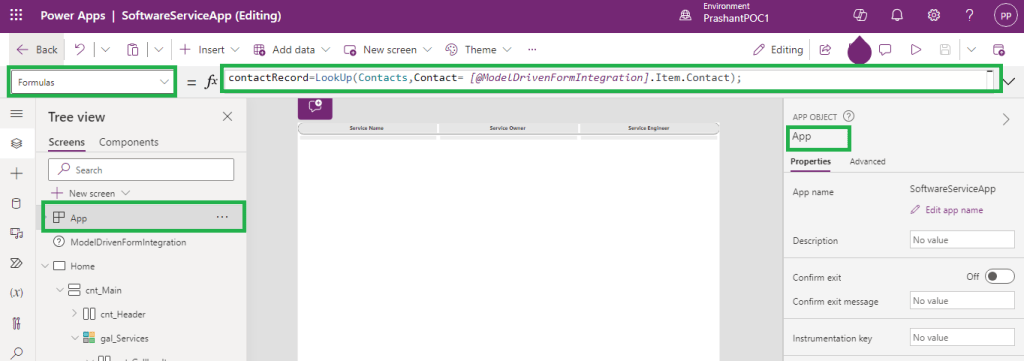
  • Define contactRecord variable in Formula in App.
contactRecord=LookUp(Contacts,Contact= [@ModelDrivenFormIntegration].Item.Contact);
  • Add Gallery control in App Screen
  • Add below formula Items of Gallery control
Filter(
    'Software Services',
    Or(
        'Service Owner'.Contact = contactRecord.Contact,
        'Software Service' in Distinct(
            contactRecord.'Software Services (gen_SoftwareService_Contact_Contact)',
            'Software Service'
        )
    )
)
  • ‘Service Owner’.Contact = contactRecord.Contact will filter out “Software Service” Records where current contact record is added as “Service Owner”
  • contactRecord.’Software Services (gen_SoftwareService_Contact_Contact)’ is retrieving all the “Software Service” records related to current contact record with N:N (Many-to-Many) relationship gen_SoftwareService_Contact_Contact. This I am using as “Service Engineers”. But the fields are not directly accessible in the relationship. So utilizing the Distinct formula to list out all the “Software Service” Id to compare in Filter formula.
  • Please note- when you have to access “Software Service” N:N(Many-to-Many) records for Contact record it can be accessible as contactRecord.’Software Services (gen_SoftwareService_Contact_Contact)’ and if you have to access all contact N:N (Many-to-Many) records for “Software Service” record it can be accessible as serviceRecord.Contacts.
  • Above formula will list out all the “Software Service” records when current contact record when it is added as Service Owner or Service Engineer.
  • Now another requirement to display “Service Engineer” Name for “Software Service” when contact record is associated as “Service Engineer” in N:N (Many-to-Many) relationship.
  • Add below formula in Text for “lbl_serviceEngineer” label added in Gallery control
If(
    contactRecord.Contact in Distinct(
        ThisItem.Contacts,
        Contact
    ),
    contactRecord.'Full Name',
    Blank()
)
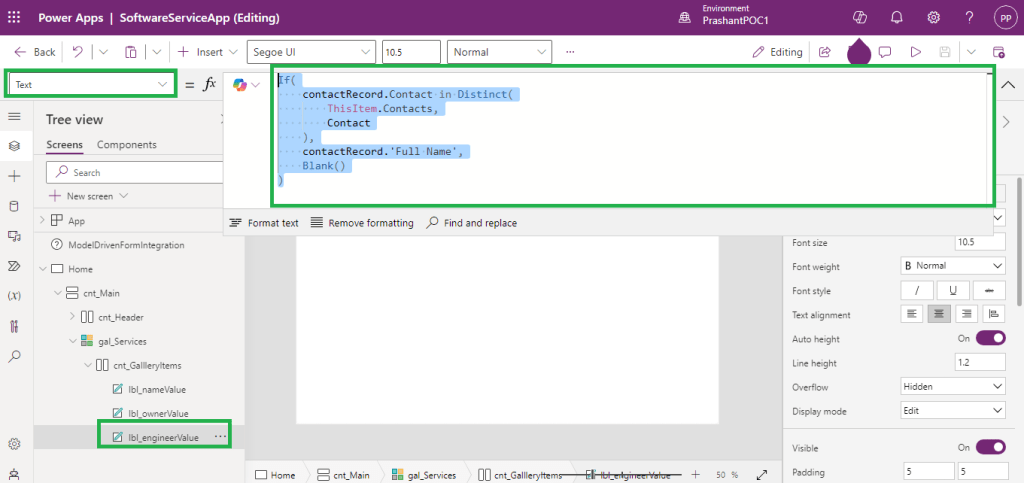
  • As explained in Gallery control Item formula, ThisItem.Contacts represents the all N:N (Many-to-Many) “Contact” records related to ThisItem, where ThisItem represent current “Software Service” record.
  • If current opened contact record is listed in all associated “Contacts” to “Software Service” (ThisItem), then show current contact record Full Name, else show blank.
  • In all above formulas, I have used Distinct formula to overcome inaccessibility of related record fields as well as any delegation errors in formula.
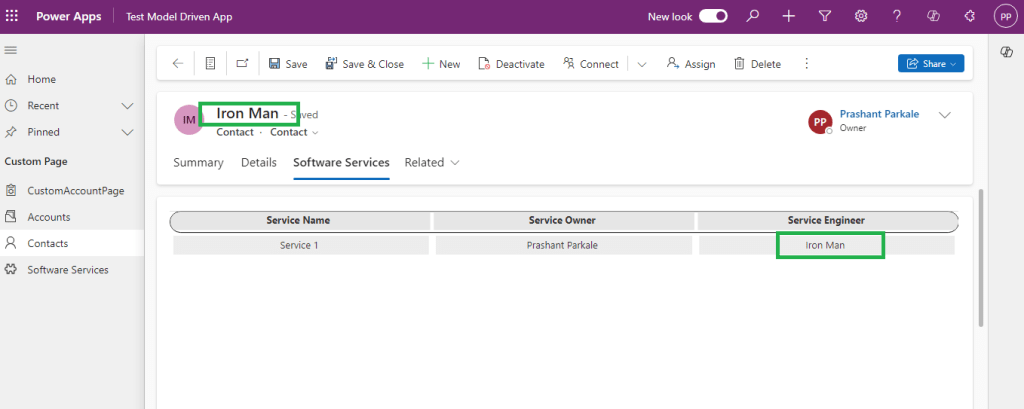
In above scenario, we learnt how to access related tables and use related table columns in regular formulas (using Distinct) when tables are in N:N (Many-to-Many) relationships.

Hope this will help…
Enjoy MS CRM!!!

Follow on Facebook- FB: MSCRM16Tech

Power Apps : Create Generic Notification in your own style and Replace OOB Notification

What is Issue?

Power Apps provides the way to display notification when some operation succeeded or there is any error, warning or just to show some information. We can use Notify() function which displays like banner on top of the app.

But sometime user don’t like this way to show notification. Is there any way to make it more fancy?

The Reason-

We can achieve the fancy Notification using multiple controls like containers, labels. But for each screen it will be repetitive task to implement this on each screen. How we can make it reusable, configurable and more generic?

Solution-

Power Apps has ability to create reusable components using Component Libraries or PCF controls. You can refer the this blog to create reusable Component Libraries.

Let’s see how we can leverage the Component Library and create custom Component.

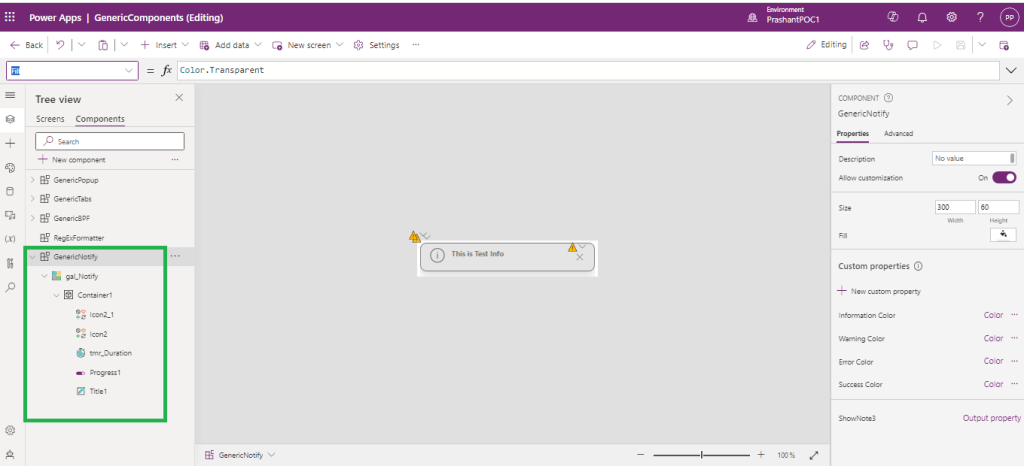
Go to the Components Tab of your Power App in App Editor.

  1. Create new Component “GenericNotify”.
  2. Add Gallery
  3. Add Container in Gallery
  4. Add controls like Icons, timer, Label, etc. in Container.

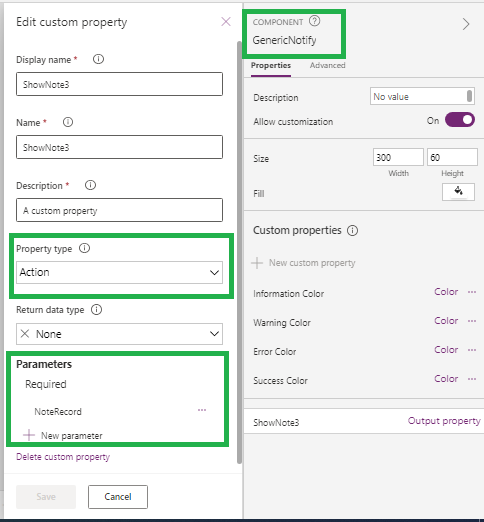
Select GenericNotiy Component and add custom property (Name: ShowNote3, Type : Action) with required Parameter “NoteRecord”(Data Type : Record).

Set NoteRecord with JSON-

{Text:"This is Test Note",Type:"Info",Timeout:5000}

This will ensure the valid Record schema to be set from App where we are going to use this custom control.

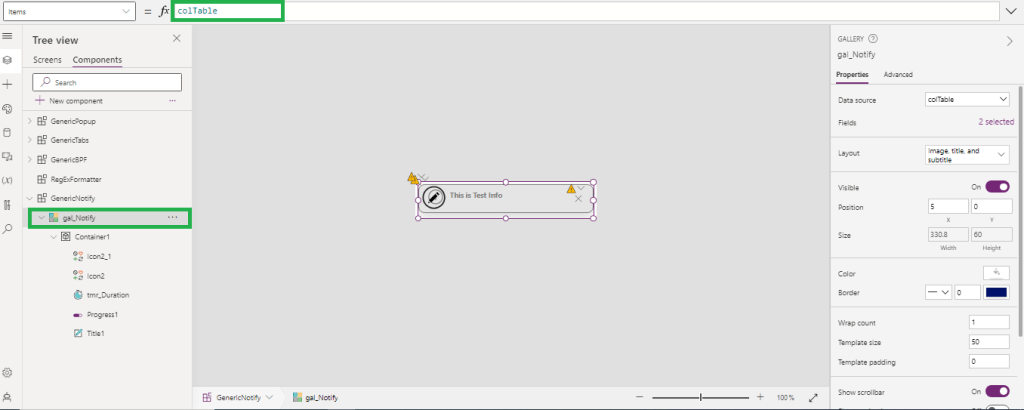
On ShowNote3 custom property, collect the record received in parameter NoteRecord in collection. let’s say colTable.

Now, we have Collection and Collection schema that I can use in the gallery control.

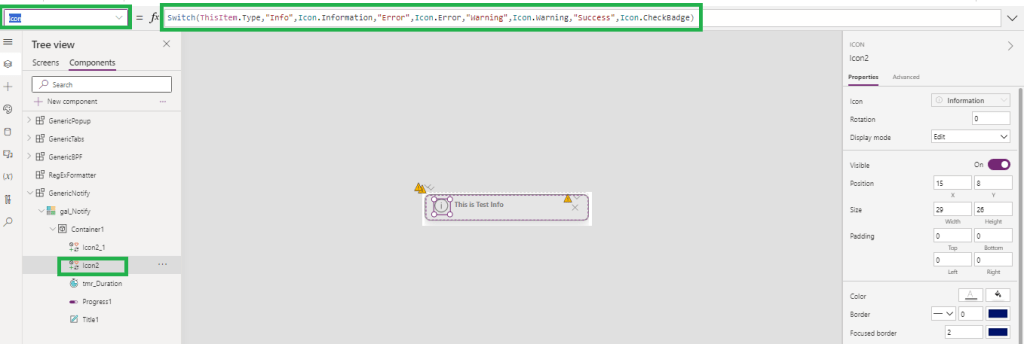
Set the icon and Icon color based on the Notification Type.

For Icon-

Switch(ThisItem.Type,"Info",Icon.Information,"Error",Icon.Error,"Warning",Icon.Warning,"Success",Icon.CheckBadge) 

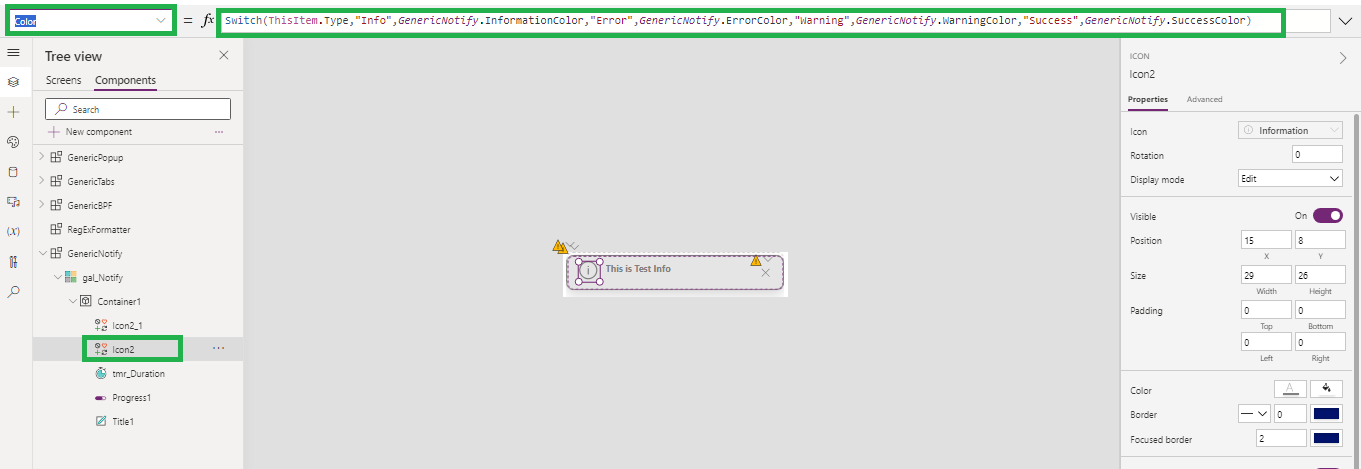
For Color, we can use the custom properties (Type: Input, Data Type :Color) of custom control. (InformationColor, WarningColor,ErrorColor,SuccessColor).

Switch(ThisItem.Type,"Info",GenericNotify.InformationColor,"Error",GenericNotify.ErrorColor,"Warning",GenericNotify.WarningColor,"Success",GenericNotify.SuccessColor)

It makes this notification more configurable from App.

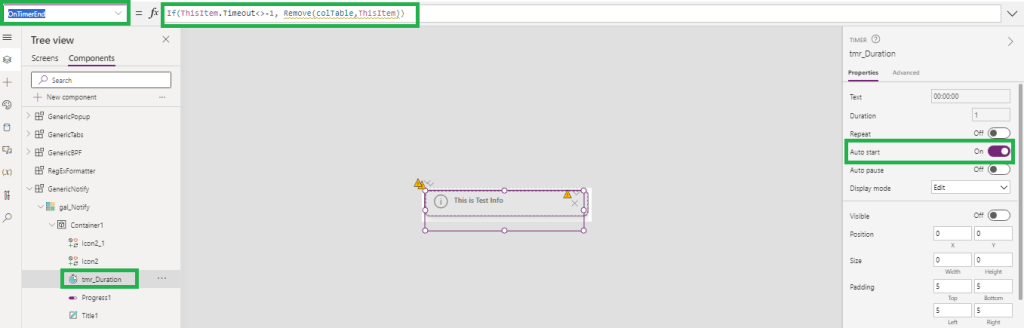
To set timeout property of notification, use timer.

Set timer duration with current record timeout value-

If(ThisItem.Timeout>0,ThisItem.Timeout,1)

And onTimerEnd, notification should be vanished from screen. To do this, remove current record from collection colTable

If(ThisItem.Timeout<>-1, Remove(colTable,ThisItem))

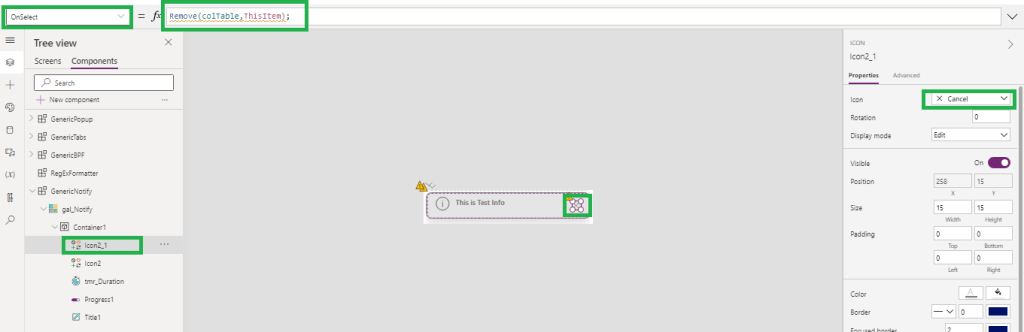
On click of Cancel, Notification should be closed. Similar to OnTimerEnd, remove current record from collection colTable.

Remove(colTable,ThisItem);

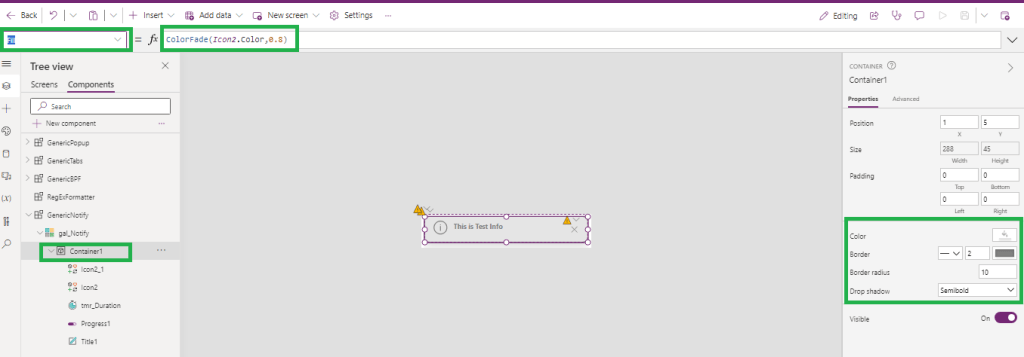
Set the container color based on the Icon color(which is depends on the NotificationType of current record).

ColorFade(Icon2.Color,0.8)

Set Notification Text in lable (Title1 as shown in image) and set color similar to Notification Icon.

Text –

ThisItem.Text

Color –

Icon2.Color

After doing some basic setting on each control in custom control, save it and use it in app.

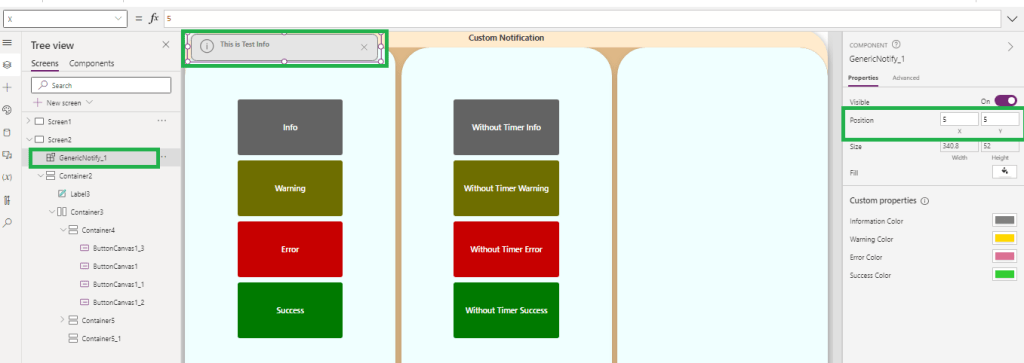
Add Custom Control in App and set the position where you want to show the notification.

  1. For Top-Left set X=5 and Y = 5
  2. For Top-Center Set X = (Parent.Width/2)-(Self.Width/2) and Y=5
  3. For Top-Right Set X= Parent.Width-Self.Width -5 and Y=5
  4. For Bottom-Left- X=5 and Y= Parent.Height-Self.Height-5
  5. For Bottom-Center X = (Parent.Width/2)-(Self.Width/2) and Y= Parent.Height-Self.Height-5
  6. For Bottom-Right X= Parent.Width-Self.Width -5 and Y= Parent.Height-Self.Height-5
  7. Height of the Control should be based on the number of Notification, so Height=52*CountRows(colTable) . 52 is Notification height.

In App, Call the ShowNote3 function and pass the record while calling function.

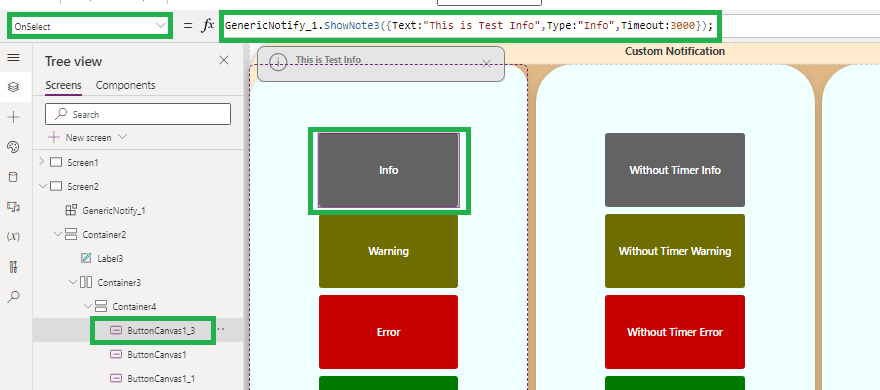
Suppose on Button onSelect event I want to show information.

GenericNotify_1.ShowNote3({Text:"This is Test Info",Type:"Info",Timeout:3000});

If you don’t want to hide notification automatically pass Timeout : -1

GenericNotify_1.ShowNote3({Text:"This is Test Info",Type:"Info",Timeout:-1});

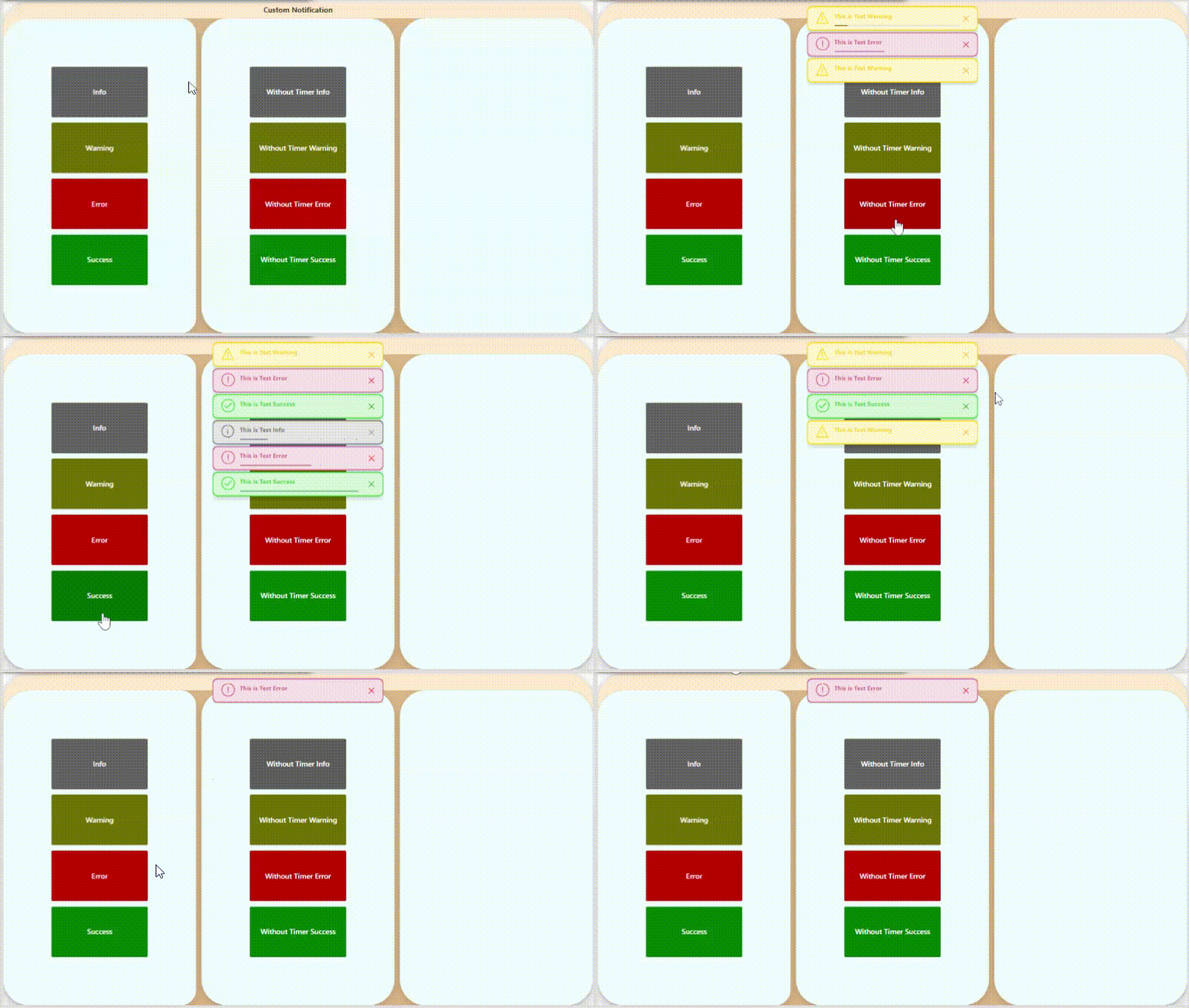
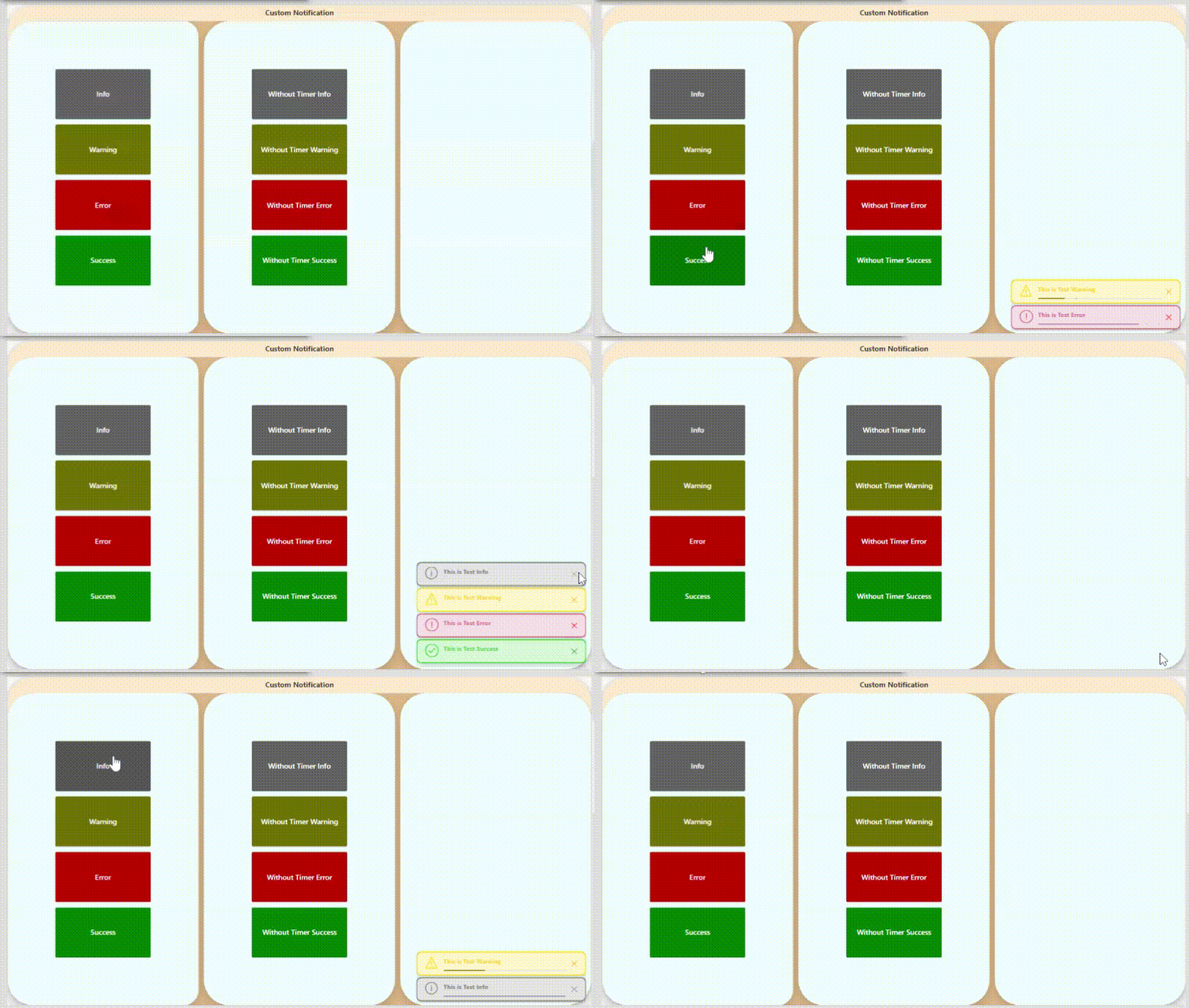
Demoes below-

Top-Left
Top-Center
Top-Right
Bottom-Right

Now this Custom control can be reused in multiple screens and apps.

Hope this will help…
Enjoy MS CRM!!!

Follow on Facebook- FB: MSCRM16Tech

Power Apps : Form Controls always remains Unsaved

What is Issue?

Power Apps has many useful controls that makes development faster and easier. Form control is one of the control using which user can create, edit or view records. With minimal configuration these forms can be implemented quickly in Power Apps.

I had one scenario that where user want to save form automatically when user moves from one tab to another tab in app. The condition was automatic save will be only if form is having unsaved changes.

When I implemented this, even if user has not changed any value on the form, form was submitted and saved the changes every time.

The Reason-

I used condition If(Form.Unsaved, submitForm(Form1)). But every time Form was submitted and I noticed the form was always unsaved.

Solution-

While working with Edit Forms, You need to consider few things-

  1. Use of Unsaved, Updates and LastSubmit properties of form
    • Unsaved – Form1.Unsaved : This will either true or false. If any field on form updated, It will return true.
    • Updates – Form1.Updates : This holds the local object with updated values of the form1 item before submit.
    • LastSubmit – Form1.LastSubmit : This returns object of form1 item which was last submitted.
  2. Setting defaults on form fields
    • Lots of the fields user want to set with default values manually. But there is side effect on use of Unsaved property of Form if not set properly.
    • Setting default also triggers the OnChange event of the field whenever form item gets changed or Field value is defaulted with some condition.

So In my case, I observed that I set few fields with default values and that caused the form remains in Unsaved always true.

Consider, I have gallery form Account and edit form that allows me to edit the Account selected in gallery.

There is the Label in red that reads “Form has unsaved changed :false”.
For this label I used formula in Text : “Form has unsaved changes : ” & Form1.Unsaved

Initially, I didn’t set any manual default value for Primary Contact field.
That shows, Form1.Unsaved = false

Now, On Account, I want to set the default Primary Contact as Contact with email address “p@p.com”.

As soon as I added default value to the form, Label started showing “Form has unsaved changes : true”

And just to check whether this also triggers the OnChange event of the field, I added Notify(“OnChange event Triggered”);

I ran the App and then changed the gallery selection, It started showing the unsaved changes and OnChange Notification on screen.

To overcome Unsaved changes I modified a DefaultItems property of Primary contact-
If(IsBlank(Parent.Default),First(Filter(Contacts, Email=”p@p.com”)),Parent.Default)

What I am doing here is, if there is already value in Primary Contact field, don’t set Contact with email address “p@p.com”.

Now let’s try changing Gallery Item, No unsaved changes any more, but as form Item is changed, OnChange event of that field will trigger.

So, be careful while adding some logic in OnChange event of field when Form Item is going to change.

Hope this will help…
Enjoy MS CRM!!!

Follow on Facebook- FB: MSCRM16Tech