MS CRM : Direct status/status reasons updates work in Plugins, not in Workflows or Power Automate

What is Issue?

As developers working with MS Dynamics CRM, we often encounter tricky issues. Recently, I faced a situation where I needed to update the quote status from Draft to Closed and then revise it. To achieve this, I created a CRM Action that directly updated the quote status to Closed. When this action was invoked from a plugin (triggered by an automated process), it worked as expected.

However, another requirement was to create an on‑demand workflow that performed the same process as the automated plugin. While the workflow logic followed the plugin’s behavior, the issue arose when executing the action. Running the on‑demand workflow displayed the error: “Quote status cannot be changed to Closed. Please use the CloseQuoteRequest instead.”. In other words, the status update succeeded when called from a plugin but failed when executed through an on‑demand workflow.

The Reason-

In CRM, on‑demand workflows, plugins, and Power Automate each have their own execution behavior. Additionally, certain actions and status changes—such as Revise Quote, Close Quote, or Win/Lose Opportunity—are governed by CRM‑defined business rules that must be strictly followed.

Solution-

To resolve such issues, it is important to understand the different behaviors of plugins, workflows, and Power Automate flows in CRM.

When an action is executed from a plugin, it runs within the CRM pipeline and in the same transaction, where the update is treated as an UpdateRequest. Plugins can sometimes bypass certain UI validations and allow direct updates. Although plugins run in the calling user’s context, the organization service controls the transaction and leverages SDK messages internally. This makes it possible to perform update operations in special cases.

In contrast, when updates are performed through a workflow or Power Automate flow, they run in the workflow engine, which operates outside the transaction and enforces stricter validations. Additionally, when a workflow or flow is triggered on‑demand by a user, CRM applies UI validations and executes in the actual user context. These validations ensure that actions follow the defined business process sequence.

For example, when revising a quote, CRM closes the current quote and creates a new draft version for editing. It automatically increments the revision ID and maintains audit history.

Even though plugins may allow direct status or status reason updates, it is always recommended to use the appropriate CRM message (such as CloseQuoteRequest) within plugins as well. This ensures consistency and adherence to the same business process across workflows, plugins, and Power Automate flows.

Below are some of the special messages that should be used to avoid issues like this.

Module‑wise Entity List with Special Messages

📞 Service Module

EntityMessage/RequestPurpose
Case (Incident)CloseIncidentRequestCloses a case with resolution details

💼 Sales Module

EntityMessage/RequestPurpose
OpportunityWinOpportunityRequestMarks opportunity as won (requires revenue, date)
OpportunityLoseOpportunityRequestMarks opportunity as lost (requires reason, date)
QuoteCloseQuoteRequestCloses a quote (won/lost)
QuoteReviseQuoteRequestCreates a new version of a quote for editing
Sales OrderCancelSalesOrderRequestCancels a sales order
Sales OrderFulfillSalesOrderRequestMarks a sales order as fulfilled
InvoiceCancelInvoiceRequestCancels an invoice
InvoiceSettleInvoiceRequestMarks an invoice as paid/settled
ContractCancelContractRequestCancels a contract
ContractRenewContractRequestRenews a contract
ContractCloneContractRequestCreates a copy of a contract

⚙️ Common / Cross‑Module

Entity TypeMessage/RequestPurpose
Standard Entities (without dedicated close/cancel messages)SetStateRequestChanges state/status for entities that don’t have a dedicated message
Custom EntitiesUpdateRequestModern alternative for changing state/status safely
Custom EntitiesSetStateRequestUsed for custom entities when no special message exists

This is another key factor to consider when choosing a plugin over a workflow. Check out the rest of this blog for more differences between plugins and workflows.

Hope this will help…
Enjoy MS CRM!!!

Follow on Facebook- FB: MSCRM16Tech

Get SharePoint Document details for particular record in MS CRM using FetchXML

What is Issue?

There are many cases while implementing MS CRM where clients ask to perform some operation in MS CRM based on the document uploaded in SharePoint. But how to get SharePoint document details in MS CRM other than “Documents” associated view? If you try to fetch records using advanced find or querying sharepointdocument entity directly, it will show you error. So how we can query and get the document details using code either from client side or server side?

The Reason-

MS CRM Supports only the associated view for Document i.e. sharepointdocument entity. MS CRM do not support direct querying on all sharepointdocument.

Solution-

There is a way to fetch SharePoint document details for particular record in MS CRM.

If you try to query on Document entity in MS CRM using Advanced find you will get the error-” SharePoint document entity does not support any view other than associated view”.

Now this seems trouble to get sharepoint document details. Don’t worry, as error itself says, the sharepoint document does not support any view other than associated view, We can keep building query in advance find itself.

Suppose I want to get documents details for one of my Opportunity in MS CRM , So I am building the query in the following way-
1. Look for : Document
2.Use Saved View :All Sharepoint Documents
3.If you want, you can edit the columns
4. Select Regarding(Opportunity) contains data
5. Select sub query for opportunity record(for which you want to get details)

If you click on results, it will still show you same error. Don’t worry, download the fetchXML for the query we built.

<fetch version="1.0" output-format="xml-platform" mapping="logical" distinct="false">
  <entity name="sharepointdocument">
    <attribute name="documentid" />
    <attribute name="fullname" />
    <attribute name="relativelocation" />
    <attribute name="sharepointcreatedon" />
    <attribute name="filetype" />
    <attribute name="absoluteurl" />
    <attribute name="modified" />
    <attribute name="sharepointmodifiedby" />
    <attribute name="title" />
    <attribute name="readurl" />
    <attribute name="editurl" />
    <attribute name="author" />
    <attribute name="sharepointdocumentid" />
    <attribute name="ischeckedout" />
    <attribute name="locationid" />
    <attribute name="iconclassname" />
    <order attribute="relativelocation" descending="false" />
    <link-entity name="opportunity" from="opportunityid" to="regardingobjectid" link-type="inner" alias="ad">
      <filter type="and">
        <condition attribute="opportunityid" operator="eq" value="{83779C3E-xxxx-xxxx-xxxx-0CD3BEAFE160}" />
      </filter>
    </link-entity>
  </entity>
</fetch>

When I tried to use the fetchXML in Javascript query, I got the Sharepoint Document details in json as below-

As sharepoint document entity supports only associated view, it requires regarding object to query. So if you try to remove and link-entity tag from fetchXML, it will not return any record in response.

Now we have fetchXML which we can utilize in Javascript or C# based on requirement.

Hope this will help…
Enjoy Ms CRM!!!

Follow on Facebook- FB: MSCRM16Tech

ReadOnly Subgrids in MS CRM

What is Issue?

While working on MS CRM projects I had requirement of readOnly subgrids in MS CRM. You can achieve this to some extent by hiding buttons on subgrids. But if the requirement is like links should not be clickable for some of the security roles or for some conditions, it is not possible using out-of-box subgrids. That time we had no other option than going with html and JavaScript web resources for this.

The Reason-

This can not be achieve using out-of-box subgrids controls.

Solution-

There are 2 solution for this-
1. Go with HTML webresource.
2. Create Your own Custom Control using PCF (PowerApps Control Framework)

I created the completely read-only subgrid with pagination functionality similar to out-of-box subgrid.

Taking my current scenario-
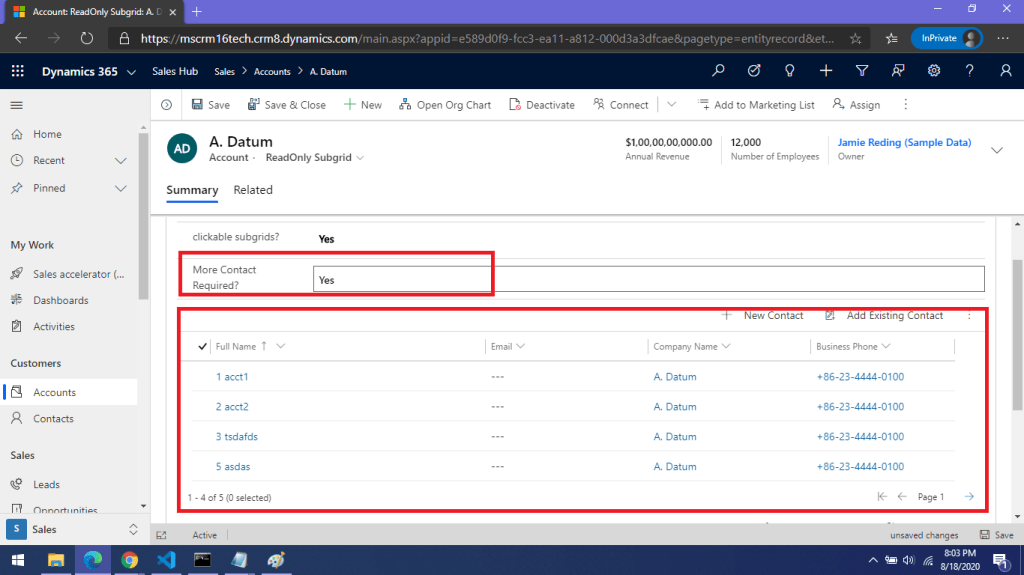
I have to make subgrid completely read-only if the “More Contact Required?”= NO
Or else the subgrid will be normal subgrid.

So what I did –

  1. On form I added 2 similar subgrids with different Names.
  2. Added script on change of “More Contact Required?” field to show required subgrid.
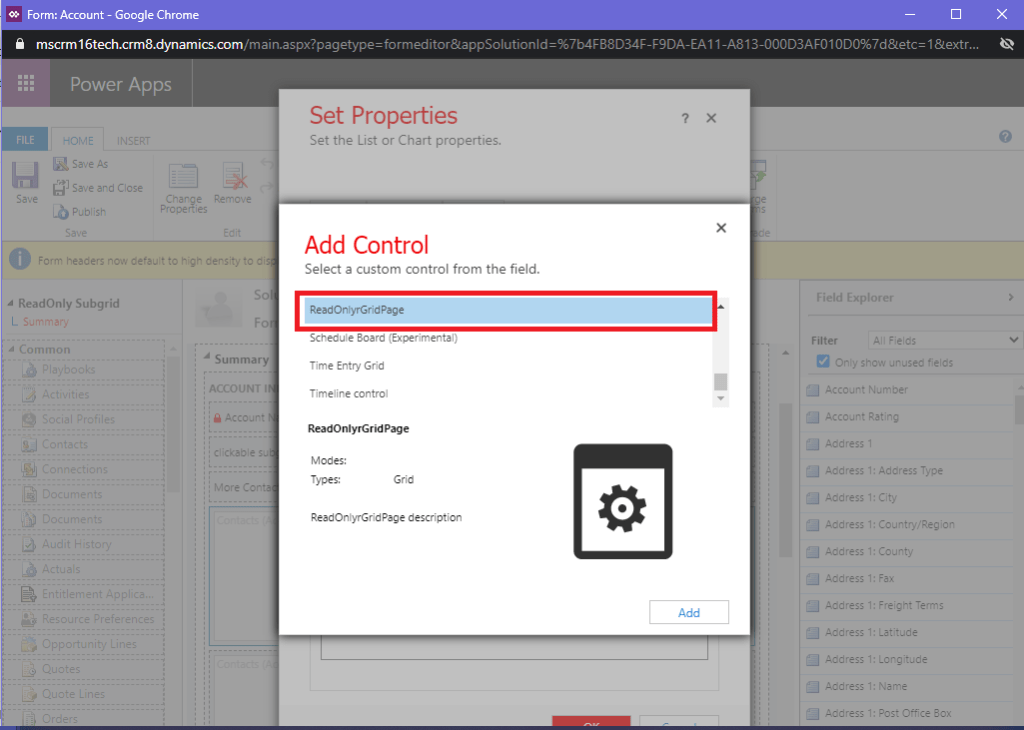
  3. Changed the control for subgrid which is visible when “More Contacts Required?”= NO
    Open Form Editor -> Select Subgrid -> Change Properties -> Controls Tab ->Add Control -> Selected my own custom Control ->ReadOnlySubgridPage -> Click Add
  4. Save Form and Publish.

Now I found it so simple as I can make any subgrid readonly with my custom control.

You can download the Solution from here and import in Dynamics 365 to use the control.

If you want to check source code download from here.

To work with source code you need some of the basic setup in your computer-
1. Nodejs installed
2. VS or Visual Studio Code installed
3.Understanding of below commands-

pac pcf init --namespace yourNamespace --name yourControlName --template dataset
npm install
npm run build
npm start
pac solution init --publisher-name yourPubliserName --publisher-prefix yourPrefix
pac solution add-reference --path "pcfproj folder path"
msbuild /t:restore
msbuild

Hope this will help…
Enjoy Ms CRM!!!

Follow on Facebook- FB: MSCRM16Tech

Color Picker Custom Control for MS Dynamics CRM

What is Issue?

One of my previous projects had requirement of color picker in MS CRM to provide users flexibility to select any color to can display notifications(using HTML) on their records. But we had no other option than going with html and JavaScript web resources for this.

The Reason-

MS CRM don’t provide any color picker field out-of-box.

Solution-

As I already had a blog written for color picker using web resources and spectrum libraries-Color Picker in MS CRM ?

But it is web resource which needs much efforts to match to field styles in crm.

I have created the custom pcf control (PowerApps Custom Control). This control can be used for the single line text fields.

Depends on browser it appears in supported way-

On Browsers other than IE-

This slideshow requires JavaScript.

In IE it will appear as –

This slideshow requires JavaScript.

If you want to use it you form you can download ready custom control from here-ColorPickerSolution.zip

How to use it-
1. Import downloaded solution in CRM-
ColorPicker5

2. Create single line of Text field in any entity you want and add it on form.
3. when adding to form select field, click on change field property and in controls tab add custom control “ColorPicker”-

This slideshow requires JavaScript.

4.Save and publish the form.
Now the control is available and ready on form to use.


You can also download the source code from here-ColorPickerSource.zip

To work with source code you need some of the basic setup in your computer-
1. Nodejs installed
2. VS or Visual Studio Code installed
3.Understanding of below commands-


pac pcf init --namespace yourNamespace --name yourControlName --template field
npm install
npm run build
npm start
pac solution init --publisher-name yourPubliserName --publisher-prefix yourPrefix
pac solution add-reference --path "pcfproj folder path"
msbuild /t:restore
msbuild

Hope this will help…
Enjoy Ms CRM!!!

Follow on Facebook- FB: MSCRM16Tech

Compare Security Roles available in MS CRM Organization

What is Issue?

Many times in organization many security roles got created but it becomes difficult to find out differences between them. Checking one by one is time consuming and complicated task.

The Reason-

No direct way available to compare 2 security roles.

Solution-

you can use the tool created by mscrm16Tech as below-
It provides view of all security roles available in Organization and allows to to compare them with each other.

When you install and open the application in your system you will get below window which will help you in configuration of MS CRM connection and database connection if needed. You can connect to CRM using CRM SDK Login window. This feature is available in latest version of software only(v1.0.0.28 and above).

newConfigScreen

After configuring the app and clicks on OK, Select the application “Compare Security Roles” in next window  –

newApplicationList

Now you need to load the available security Roles in both the list  from connected CRM Organization.
Select security role from each list and click compare.

You also have option to check security roles for entities for some publisher only(custom entities).

The output loaded in grid will  privileges on entities available to from respective security roles selected in lists.

Please use below image for reference-

App4Screen

Please follow the images to work with the app.

You can download MSCRMTechTool Here- MSCRM16Tech Tool

Hope this will help…
Enjoy Ms CRM!!!

Follow on Facebook- FB: MSCRM16Tech