Calendar and Calendar Rules in MS CRM

What is the Issue?

Calendar is the great feature provided by MS CRM which is used by the scheduling system to define when an appointment or activity is to occur. But when it comes to be used by other entities in case of calculation of dates which will consider the holidays and weekends , it becomes difficult to handle. OOB there is no option to use calendar directly in entities.

The Reason-

Calendar is only entity directly available in MS CRM to be used by developers, You will not be able to access Calendar Rules entity type record which holds the information of free/busy times for a service and for resources or resource groups, such as working, non-working, vacation, and blocked.

 Solution-

As there is no Out-Of-Box option, You need to go with custom code.

First let’s understand the calendar, Holidays Calendar and Calendar Rules-

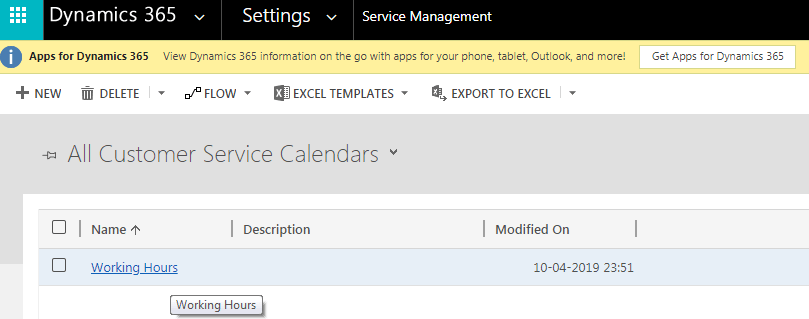
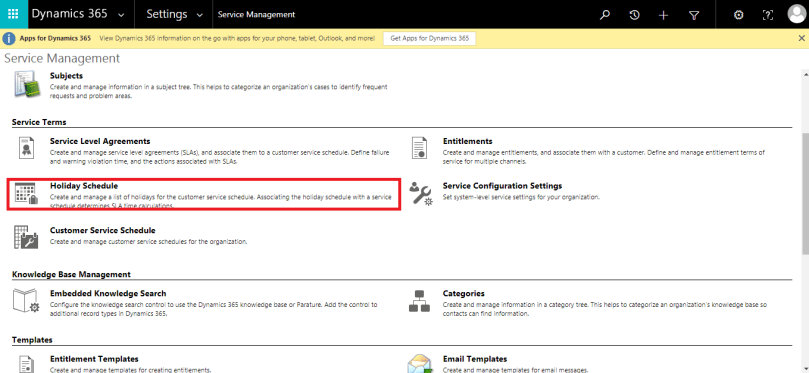
You will find the calendar under Setting > Service Management >Customer Service Schedule. You can follow the below screens to configure your Business calendar-
Calender1

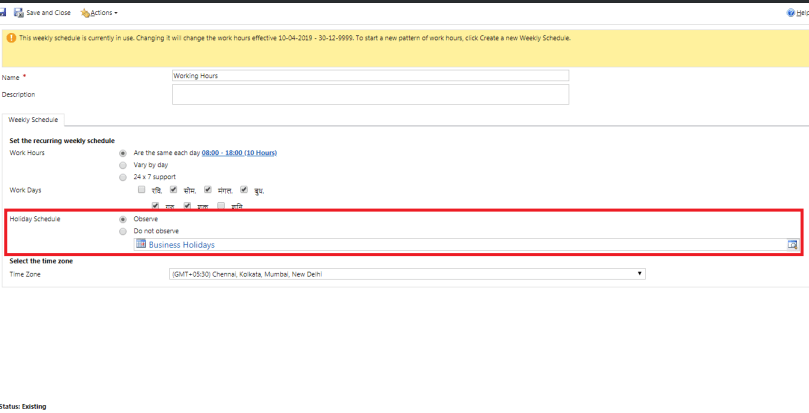
You can create Calendars as below with work days, work Hours and Holidays details .
This is the main calendar (with type 1) which is used to consider weekend and work hour in activities and appointments.
Calender2

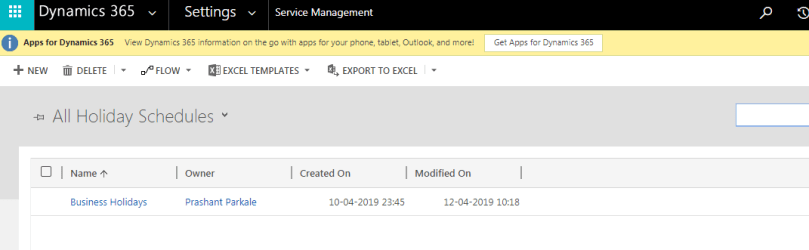
Holiday Schedule has a lookup for another calendar entity record with type 2 i.e. Holiday Scheduler calendar.
Calender3

You have to create this Holiday calendar as below-Calender4Calender5
You can configure multiple holidays here-
Calender6
Calender7

There is Calendar Rule entity record associated with the Calendar entity ( Service Schedule and Holidays Schedule calendar) which holds information inside calendar like week days , Work Hour and Holiday start , holiday end, etc.

Now coming to the solution for our issue-

As we have the option for custom code,

And In case of c# code- we can use entity  “calendar” and “calendarrule” like-
Entity calendar= new Entity(“calendar”);
Entity calendarRule= new Entity(“calendarrule”);
And use OrganizationService object to play around calendar.

In case of javaScript, we can access the information using WebApi like
[organization URI]/api/data/v9.1/calendars
Use WebApi methods GET, POST, PATCH and DELETE operations.

[organization URI]/api/data/v9.1/calendarrules
It is not possible to perform GET, POST, PATCH and DELETE operations with this entity. This can be retrieved along with Calendar WebApi call, as a sub entity record.

You can refer the below code for javaScript to retrieve the Calendar and Holiday Schedule information-

Calender8


Hope this will help you to play with calendar.

Enjoy MS CRM!!!

Set “Look For” for particular entities in Multi-entity Lookup Field like party List

What is the Issue?

Developers got requirement once in his development career to set the lookup value with only some particular entities like he only needs “users”, “contacts” and restrict other entity’s records to be selected. But he/she have to implement this for some conditions like on change of some field value. But this kind of lookup always shows all the entities in lookup.

The Reason-

This lookup field shows all the entities as it’s default OOB behavior of the multi-entity Lookup (Party List).

 Solution-

You can handle this situation with the help of client side scripting (JavaScript).

Lets have Example-

I want to show only “Contact” and “User” records in “To”,”Cc” and “Bcc” fields (Party List) of Email Entity depending on “Email Behavior” option set field value.

SetLookupForEx1

I have 2 conditions here –

  1. Default E-Mail : should show all the entities records in lookup field as default behavior of field.
    SetLookupFor1
  2. E-mail To Contact or Users Only: should show only “Contact” and “User” entities records in lookup field and all others should be hidden.
    SetLookupFor3

Lets do it with Javascript here-

SetLookupFor2

Add function “filterOnLoad” at locations-
1. “onLoad” event of form with “Pass execution Context as first Argument” checked.
2. “onChange” event of “EMail Behavior” field with “Pass execution Context as first Argument” checked.

Publish your customization and here its done…

Please Note : for “From” field has different behavior than these all above fields. “From” field is lookup/PartyList for only “Users” and “Queues”.
SetLookupFor4


You can refer My other blog post related to this one – Filter Required/Regarding (partylist data type) fields…

Hope this will help you.

Enjoy MS CRM!!!

New Unified Interface of MS Dynamics 365 CRM – Change Behavior to Classic Mode

What is the Issue?

New User interface of Ms Dynamics CRM(V9.1) with Unified Interface is bit confusing. Navigation is becoming very easy but bit complex for all the developers. Developers have much struggle to find the settings and many other options in MS CRM which was very easy to get through site map. Developers are not very much used to this behavior of the CRM. So, the question here is “where is Classic version of CRM?”

The Reason-

With new releases of MS Dynamics CRM 9.1 Microsoft is forcing the user to use Unified interface for all the apps installed in the MS CRM. Microsoft is providing the some new feature along with this Unified Interface.

Solution-

You can choose the behavior of your CRM application as Unified Interface or Classic CRM (developer is very familiar to). You need to change some setting of your application-

  1. When you are creating new online version you are getting redirected to MS Dynamics 365 My Apps.
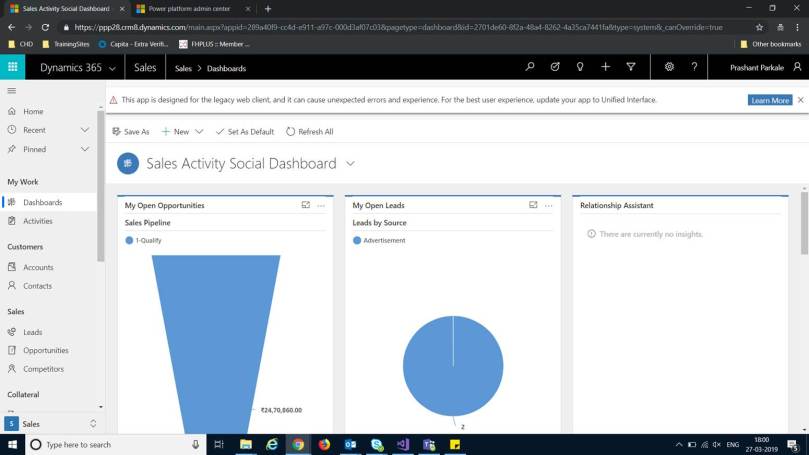
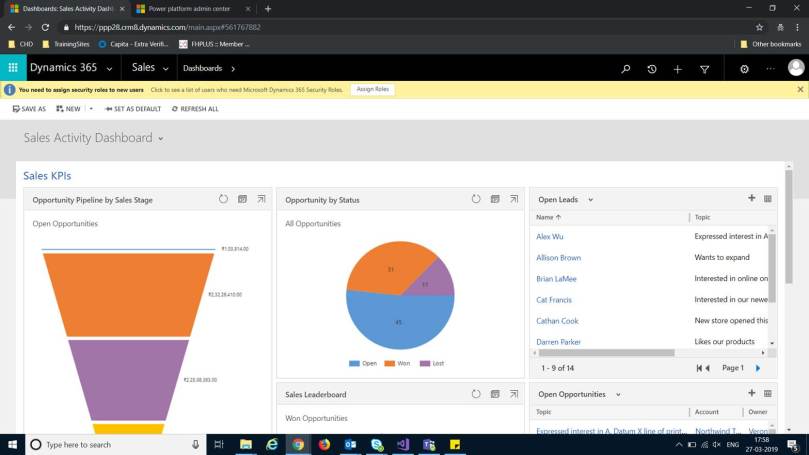
  2. Also if you trying to hit the URL https://Orgname.crm.dynamics.com and opening app under My Apps (Sales,Sales Hub, Dynamics 365 – Custom), You are not able to see the classic mode of MS CRM. It is showing Unified Interface as below-
    UI01
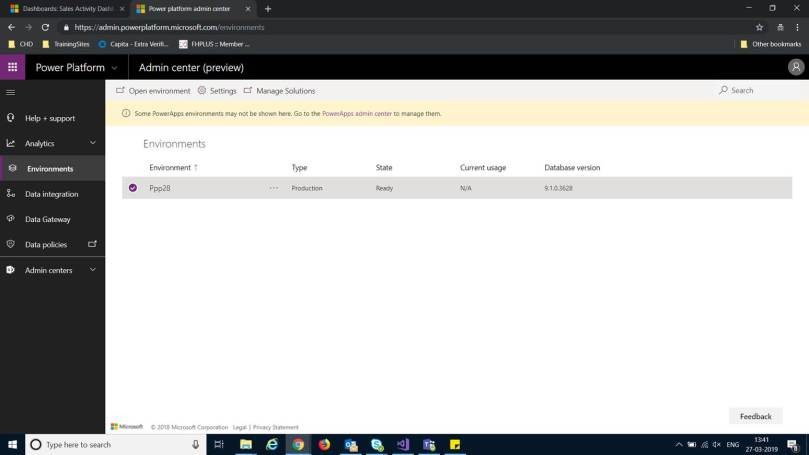
  3. Login to the URL https://admin.powerplatform.microsoft.com with your MS Dynamics administrator credentials. You will be redirected to window below-
    UI02
  4. Click on Environments on Left hand side Navigation. It will show all your environments.
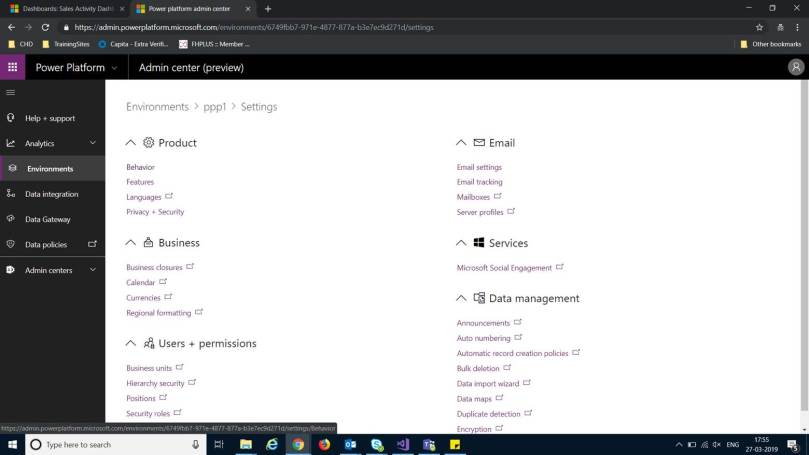
  5. Select environment( MS CRM Organization Name) and click on Settings on command bar.
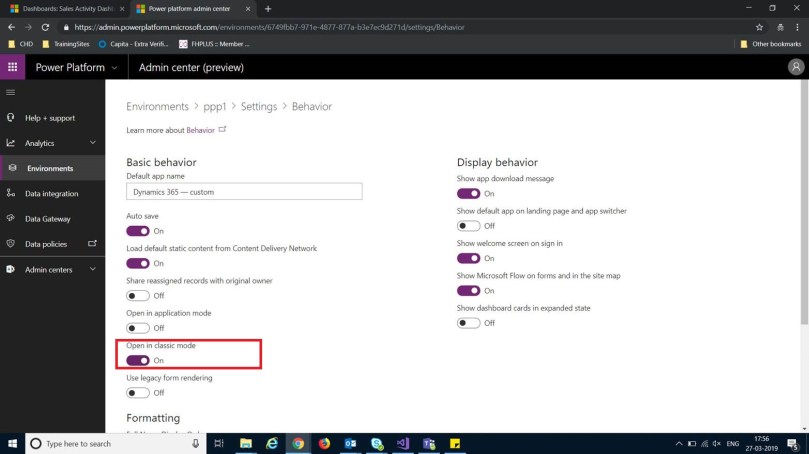
  6. Under Product Section – > Click on Behavior –
    UI04
  7. Set Open in Classic Mode -> On
    UI05
  8. Save your Setting.
  9. Login to your CRM Organization by using our traditional way –
    https://orgname.crm.dynamics.com
  10. You will be able to see your classic mode of MS CRM now with all the features you are familiar with-
    UI06


Continue with your development with classic mode…

Enjoy Ms CRM!!!

C#: Unable to connect Dynamic365

What is the issue?

While coding with C#, developers struggles to connect with Dynamics 365. OrganizationService/ OrganizationServiceProxy object contains null and connection fails.

The Reason-

The reason behind this issue –
1. dll support
2. Wrong Connection String
3. Configuration settings
4. SSL/TLS setting

Solution-

solution according to the reason-
1. dll Support-
You should know which dlls are supported to connect Dynamics 365.
Many times the CRM versions differs and due to CRM upgrades the dlls used becomes outdated for new Versions. Currently many developers faces this issue if you are using Dynamics365 online version . Current version of CrmSDK is V9.0.0.7. and this should be used.
You can add reference of CrmSDK by using Nuget Package Manager-

NuCrmSDK

You can change the version according to recent updates by Microsoft.
2. Connection String-
Wrong connection string might be the problem and for Dynamics 365 online version you can use connection string like-

"https://<YourOrgName>.api.<CRMRegion>.dynamics.com/XRMServices/2011/Organization.svc"

<YourOrgName>– This is your Organization Name.
<CRMRegion>– This is the Region you choose while creating organization.

Also you can find this string navigating Customization-> Developer Resources in Dynamics 365.

Other way to connect CRM is providing each parameter Separately like-

 Microsoft.Xrm.Tooling.Connector.CrmServiceClient conn = new CrmServiceClient(uName, pwd, "NorthAmerica", _crmOrganizationName, isOffice365: true);

Also you need to provide Username and password(converted to secured password) Properly.
3.Configuration Settings-
Many times application throws an exception like “Metadata contains a reference that cannot be resolved” .
You provides the connection string properly, every thing is correct but still you found the OrganizationService/ OrganizationServiceProxy showing null.
This happens in some particular domain networks. In this case you have to enable the Proxy setting and for this add the following tag under the configuration tag to your Web.Config /app.config file-

<system.net>
<defaultProxy useDefaultCredentials=”true” enabled=”true”>
</defaultProxy>
</system.net>

This will only use the credentials provided by you in connection string.
4. SSL/TSL settings-
Your application fails to connect Dynamics365 CRM if it is using some particular security protocol. To connect successfully , you need to explicitly mention the security by adding the following line just before the connection establishment lines-

ServicePointManager.SecurityProtocol = SecurityProtocolType.Tls12;

Use Tls12/SSL/Tls11 according to security protocol used by Dynamics365 .

Hope this will be helpful to connect your organization.