C#: Unable to connect Dynamic365

What is the issue?

While coding with C#, developers struggles to connect with Dynamics 365. OrganizationService/ OrganizationServiceProxy object contains null and connection fails.

The Reason-

The reason behind this issue –
1. dll support
2. Wrong Connection String
3. Configuration settings
4. SSL/TLS setting

Solution-

solution according to the reason-
1. dll Support-
You should know which dlls are supported to connect Dynamics 365.
Many times the CRM versions differs and due to CRM upgrades the dlls used becomes outdated for new Versions. Currently many developers faces this issue if you are using Dynamics365 online version . Current version of CrmSDK is V9.0.0.7. and this should be used.
You can add reference of CrmSDK by using Nuget Package Manager-

NuCrmSDK

You can change the version according to recent updates by Microsoft.
2. Connection String-
Wrong connection string might be the problem and for Dynamics 365 online version you can use connection string like-

"https://<YourOrgName>.api.<CRMRegion>.dynamics.com/XRMServices/2011/Organization.svc"

<YourOrgName>– This is your Organization Name.
<CRMRegion>– This is the Region you choose while creating organization.

Also you can find this string navigating Customization-> Developer Resources in Dynamics 365.

Other way to connect CRM is providing each parameter Separately like-

 Microsoft.Xrm.Tooling.Connector.CrmServiceClient conn = new CrmServiceClient(uName, pwd, "NorthAmerica", _crmOrganizationName, isOffice365: true);

Also you need to provide Username and password(converted to secured password) Properly.
3.Configuration Settings-
Many times application throws an exception like “Metadata contains a reference that cannot be resolved” .
You provides the connection string properly, every thing is correct but still you found the OrganizationService/ OrganizationServiceProxy showing null.
This happens in some particular domain networks. In this case you have to enable the Proxy setting and for this add the following tag under the configuration tag to your Web.Config /app.config file-

<system.net>
<defaultProxy useDefaultCredentials=”true” enabled=”true”>
</defaultProxy>
</system.net>

This will only use the credentials provided by you in connection string.
4. SSL/TSL settings-
Your application fails to connect Dynamics365 CRM if it is using some particular security protocol. To connect successfully , you need to explicitly mention the security by adding the following line just before the connection establishment lines-

ServicePointManager.SecurityProtocol = SecurityProtocolType.Tls12;

Use Tls12/SSL/Tls11 according to security protocol used by Dynamics365 .

Hope this will be helpful to connect your organization.

Changes not reflecting on forms while importing managed solution to organization in MS Dynamic CRM

What is the Issue?

After importing managed solution to the organization, changes on the forms not reflects.
Example- MS Dynamic CRM developer made some changes on form which is already exists in organization,like changed display name of field on form or added some function on onChange event of some field, but when imported this changes through managed solution the labels not changed or function is not added on OnChange Event of field.

The Reason-

You will face this issue in case of unmanaged changes over managed entities in the organization.These managed entities maintains the customization even after importing new changes.

Solution-

We can divide the issue in two parts.
1. New events added to the form components.
2. The exiting field properties changed on the form.

The solution for issue 1-
These changes can be moved overwriting existing the managed solution which already contains the entity form which you want to update.

The solution for issue 2-
The simple solution for the first issue is to add new tab on form and move the updated fields to the new tab and format this tab as previous one.
Also, In this case, you can move the changes using same way mentioned for issue 1.

These both issues will never occur if you maintain the version of managed solution.
While deploying changes to MS Dynamic CRM try to maintain the version of managed solution.You can avoid creating new solution each time.It will avoid many failures which occurs during solution import or the updates on entities.

To maintain version and version history using the ‘Description’ and ‘Version’ fields of solution Information.

ImportManagedSolution

IE 11 Compatibility Issues with CRM 2011

Hey Guys!

This article is useful for those CRM users who are using Microsoft Dynamics CRM 2011 version on their latest IE version.

What is the Issue?

CRM users encounter the problem with CRM views- which gets misaligned or does not load properly. CRM may crash sometimes if multiple windows are open. Overall slow performance is encountered by the users.

The Reason-

This basically happens due to compatibility issues between CRM and latest versions of IE.

Solution-

Just add the CRM URL to the compatibility mode!

Here are the steps that you can follow:

Step  1: Click “gear” icon on the upper right-hand side of your IE window.

Step 2: Select “Compatibility View Settings”

ie

Step 3: In “Add this website” text box, type your CRM URL (or simply copy & paste it!)

Step 4: Click “Add”& then “Close”.

Refresh the page. You should able to work normally.

PS: Above are steps for IE 11 version. There may be a slight difference in steps, between other versions.

I hope above article is useful for you!

Do comment if you have any questions.

Thank you!


Asynchronous Processes/Workflows Stuck in InProgress/Waiting status in MS Dynamic CRM

What is the Issue?

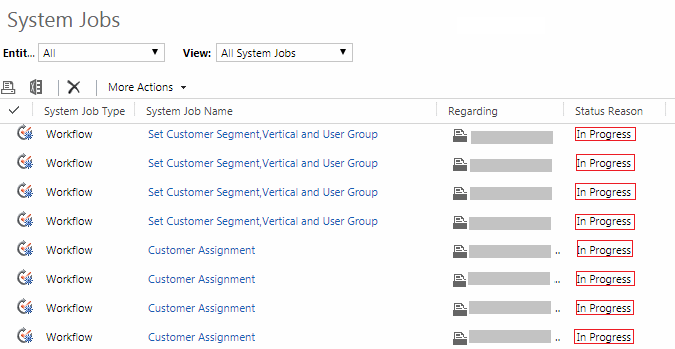
CRM developer/User once in a life faces the issue regarding Asynchronous Processes stuck in same status i.e. InPrgress/Waiting/Pausing/Canceling.You can see the system job status is not changing.

AsyncWF

The Reason-

The main reason behind this issue –

  1. Many jobs are in waiting status.
  2. Asyncoperationbase table become full due to many succeeded/canceled jobs occupied space.
  3. Asynchronous processes settings are not proper.
  4. The asynchronous workflows are not configured properly.

Solution-

The solution for this issue –

  1. Very first step is to restart the Microsoft Dynamics CRM Asynchronous Processing Service. This might work in many cases.
  2. Many Jobs are in waiting status->
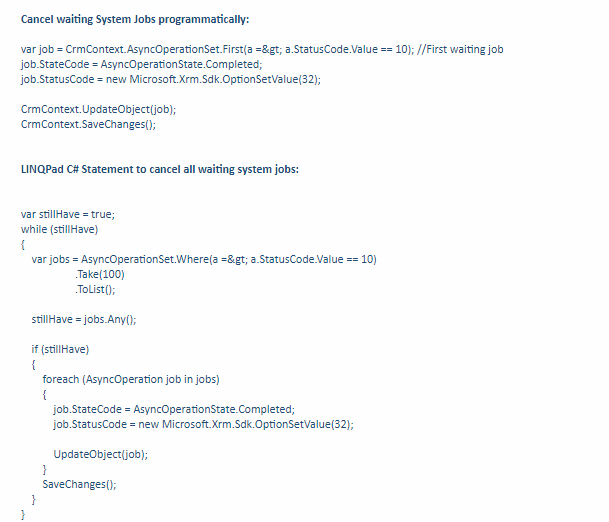
    you can update the job status to canceled and completed by creating console application or from database-
    a. Create the console and use the script –CancelWFProgramatically
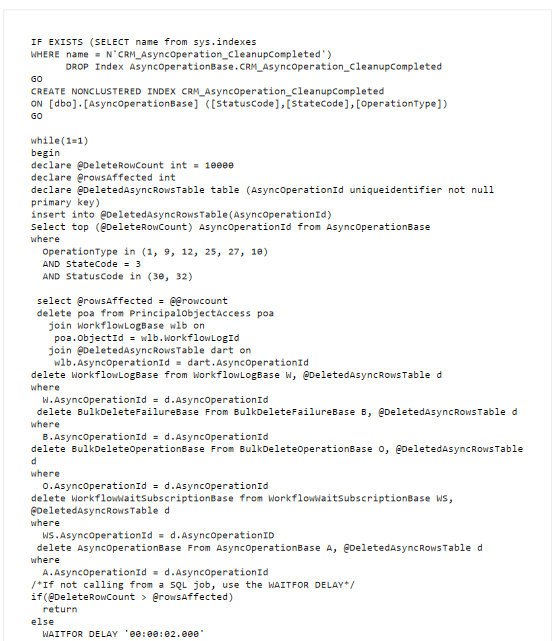
    b. Using Database Query-
    Note- You should create restore(Checkpoint) point first before working on database directly to rollback changes if needed.CancelWFDB
    You can use “where statusCode=10 –Waiting”.
  3. Asyncoperationbase table become full due to many succeeded/canceled jobs occupied space –
    You need to cleanup the database by deleting the succeeded and canceled jobs-
    Make sure that only the following Async operation types are deleted if the state code of the types is 3 and the status code of the types is 30 or 32:

    • Workflow Expansion Task (1)
    • Collect SQM data (9)
    • PersistMatchCode (12)
    • FullTextCatalogIndex (25)
    • UpdateContractStates (27)
    • Workflow (10)

    CleanupScript

    If script took very long time then you should stop the script and rebuild the indexes for AsyncOperationBase as well as PrincipalObjectAccess tables. And run the script again.

  • You can check if the values are optimal-
    • AsyncItemsInMemoryHigh
    • AsyncItemsInMemoryLow
    • AsyncStateStatusUpdateInterval
    • AsyncMaximumThreadsPerCPU
    • AsyncSelectInterval
    • AsyncSelectParallelism
    • AsyncThrottlingConfiguration
    Also you can check the ‘AsyncSdkRootDomain’ setting from [MSCRM_CONFIG].[dbo].[DeploymentProperties]WFsetting1
    Recommended value of ‘AsyncSdkRootDomain’ should be same as ‘ADSdkRootDomain’. Or you can put server name as value.
    WFsetting2
  • And Finally you can check your asynchronous work flow logic.
    There are many possibilities the workflows are stuck due to internal logic.

You have to restart the Microsoft Dynamics CRM Asynchronous Processing Service after executing any above step.

Follow on Facebook- FB: MSCRM16Tech

MS Dynamics CRM Performance Diagnostics

What is the Issue?

CRM performance becomes very slow. But there is no clue what could be the reason behind slowness of CRM.

The Reason-

There might be several reasons to CRM performing very slow.
-Heavy customization on Entities
-APP Pool issue
-Asynchronous services performance
-Database issue
-Network related issues.

Solution-

Let’s see the solution for slow performance-
1.Heavy Customization on Entities-
-Try to make pages lighter by reducing the function calls on page load.
-If performance observed very slow on any event of some particular entity, check the workflows/plugins execution and try to make them asynchronous if possible. This will definitely improve the performance of your CRM.

2.Application pool issue-
-Sometimes there might be issue with application pool, which needs to be periodically recycled.

3.Asynchronous service Performance-
-This is the another issue which affects the crm performance. Restart the asynchronous service to resume/speedup the pending asynchronous workflows which are causing slowness in some operations.
-you can check here if you are facing some issue with asynchronous services-Asynchronous Processes/Wrokflows Stuck in InProgress/Waiting status in MS Dynamic CRM

4.Database issues-
-This is the common issue MS Dynamics CRM developer faces in a life. Due to heavy data loaded in database the crm might take time to perform operations like creating records, retrieving records, loading the views in some particular entity form. You can create indexes or recreate indexes if already exist, on such a tables which is having heavy load of data.  This will be improve performance more significantly.

5.Network Related issues-
-Very rarely user will face the slowness of CRM performance due to network related issues if they have some complex network structure, which causes the high latency in the network.
-In the case of NLB, slow performance issue might be observed by the CRM Users.In this case the you can check NLB settings.

MS Dynamics CRM provides the inbuilt diagnostics tool. You can use this tool to check point 1 and point 5.  You can use tool like-http://<YourCRMServerURL>/tools/diagnostics/diag.aspx

Another great tool that is built in tool available into CRM (2013 SP1 and up) is the CRM Performance Center. Try this with IE.
To activate,  log into CRM then press CTRL+Shift+Q on your keyboard. Click Enable, then click Refresh. When browsing in CRM, this will capture how long it takes components to load. This is a great alternative to tools like Fiddler and won’t require you to install additional third-party tools.

You can also refer-
Optimizing and maintaining client performance for Microsoft Dynamics CRM 2011 and CRM Online

Hope this will help you…