“Unsaved Changes” Message after saving the record in Ms Dynamic CRM

What is the Issue?

Sometime user saves the record, even after saving the crm shows unsaved changes on form. Also if we try to “save and close/Close” the current saved record the popup continues with message – “Unsaved changes on form”.

The Reason-

This causes due to –
1. Some JavaScript is setting the field value on ‘onLoad’ event of form.
2. Some Business Rule is setting the field value.
3. Some field/fields are locked on form and populating through script.

Solution-

To solve this issue –
1. If JavaScript function is the reason, then add check condition-
if (Xrm.Page.ui.getFormType() == 1) {
//populate your values
}
// formType=1 is for Create record
This will populate the values in fields only first time i.e. the record is not saved yet.

2. If Business Rule is the reason, then add check condition before populating values-
IF Created On does not Contains Data
Then populate values
The created On field contains data only for existing/saved records and this field
populates only once,on first save of record.

3. If some fields are locked on form and populated through javaScript-
The problem is the read only fields are not consider for saving in CRM automatically. There are 3 modes for saving the read only fields-

  • always: The value is always submitted.
  • never: The value is never submitted. When this option is set, data cannot be edited for any fields in the form for this attribute.
  • dirty (default): The value is submitted on create if it is not null, and on save only when it is changed.

You can save the read only field using setSubmitMode function as-


Importing managed solution in MS Dynamic CRM Error-A record with these values already exists.

What is the Issue?

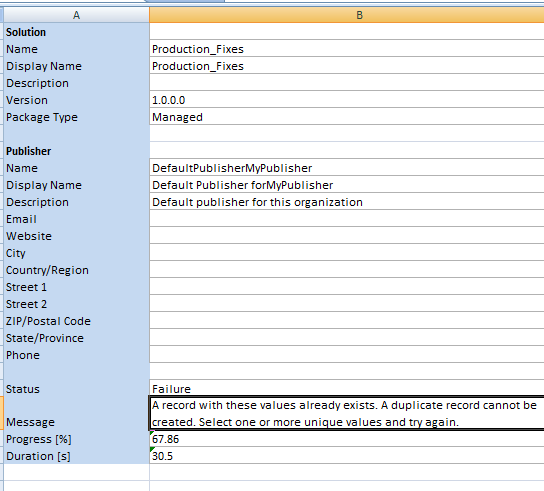
When you try to import some managed solution to the MS CRM organization, It shows the error A record with these values already exists. A duplicate record cannot be created. Select one or more unique values and try again.”  and import fails.
When you download the import Log you can find the error as below-

ImportFailError1ImportFailError2

The reason-

This happens due to manually updated the entity in target environment and you try to import the customization on that entity.
This creates the record in CustomControlDefaultConfigBase , due to which MS CRM won’t allow you to insert new entry in database.

Solution-

The solution to import these type of entity customization ,you need to delete the old database entry of your target environment by query-

select * from CustomControlDefaultConfigBase 
where PrimaryEntityTypeCode 
in (select objecttypecode from entity 
where name = Impacted Entity’)
delete from CustomControlDefaultConfigBase 
where PrimaryEntityTypeCode =Impacted Entity ID


Task Scheduler Error-A specified logon session does not exist

What is the Issue?

When you try to create task in task scheduler.Under Security option you unchecks the ‘Run only when user is logged on’ and select ‘do not store passwords’ checkbox on General Tab.
On create of task the error pops up saying-An error has occurred for the task TaskName. Error message: The following error was reported: A specified logon session does not exist. It may have already been terminated..
This error will not occur if the “Run only when user is logged on” Security option on the General tab is selected.

The Reason-

This error came up whether you logs on as a Local Administrator, Domain Administrator, or any other user that had rights to log on locally. When creating a new task, this error will only occur if the Security Policy –Network access: Do not allow storage of passwords and credentials for network authentication is enabled and you select the “Run whether user is logged on or not” Security option on the General tab.

Solution-

To resolve this error you need to disable security policy-
Network access: Do not allow storage of passwords and credentials for network authentication
Follow the steps-

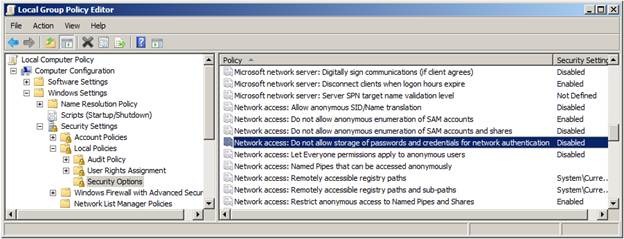
SECPOL.MSC => Security Settings => Local Policies => Security Options=>Network access: Do not allow storage of passwords and credentials for network authentication 

taskScheduler1

Disable the policy-

taskScheduler2

Insufficient Privileges Issue-prvReadSharePointDocument Location Ms Dynamic CRM

What is the Issue?

Some time we face the issue saying -‘Insufficient Privileges’ while creating record in some entity. Let’s say example- When you try to create opportunity from lead (Qualifying Lead), for some user it shows the ‘Insufficient Privileges’ error. And if we download the log file we get following error message-

uhex

The Reason-

The error occurs because you have enabled document management to the entity Opportunity. This requires the read access to the user on SharepointDocumentLocation.

Solution-

To solve the issue give user the read access to SharepointDocumentLocation, if you are using Sharepoint or else you can disable the Document Management for the entity for which the error occurred.

In case you want to disable the setting you just need to go to –
Settings => Customizations => Customize the System => Components => Entities => Opportunity. Under the “Communication & Collaboration” section=> uncheck the box for “Document Management”.

Issue-Lookup values getting cleared on Save in Ms Dynamic CRM

What is the issue?

Your application form has some lookup fields on it and you are trying to populate the field via JavaScript. And before save the value seems to be selected/populated on form properly. But when you click on Save button the value in the lookup field disappears and become null. Even on click of Save and close the popup comes and says Unsaved changes on your form.

The Reason-

The issue with Guid that we are setting in lookups.

Solution-

You know the reason now.
Some times we get the Guid in the format-
XXXXXXXX-XXXX-XXXX-XXXX-XXXXXXXXXXXX

Convert this GUID in the format-
{XXXXXXXX-XXXX-XXXX-XXXX-XXXXXXXXXXXX}

function SetLookupValue(LookupId, Type, Id, Name) {
    if (Id.indexOf('{') == -1)
        Id = '{' + Id;
    if (Id.indexOf('}') == -1)
       Id = Id + '}';
    Id = Id.toUpperCase();
    var lookupEntityReference = [];
    lookupEntityReference[0] = {};
    lookupEntityReference[0].id = Id;
    lookupEntityReference[0].entityType = Type;
    lookupEntityReference[0].name = Name;
    Xrm.Page.getAttribute(LookupId).setValue(lookupEntityReference);
}