Set “Look For” for particular entities in Multi-entity Lookup Field like party List

What is the Issue?

Developers got requirement once in his development career to set the lookup value with only some particular entities like he only needs “users”, “contacts” and restrict other entity’s records to be selected. But he/she have to implement this for some conditions like on change of some field value. But this kind of lookup always shows all the entities in lookup.

The Reason-

This lookup field shows all the entities as it’s default OOB behavior of the multi-entity Lookup (Party List).

 Solution-

You can handle this situation with the help of client side scripting (JavaScript).

Lets have Example-

I want to show only “Contact” and “User” records in “To”,”Cc” and “Bcc” fields (Party List) of Email Entity depending on “Email Behavior” option set field value.

SetLookupForEx1

I have 2 conditions here –

  1. Default E-Mail : should show all the entities records in lookup field as default behavior of field.
    SetLookupFor1
  2. E-mail To Contact or Users Only: should show only “Contact” and “User” entities records in lookup field and all others should be hidden.
    SetLookupFor3

Lets do it with Javascript here-

SetLookupFor2

Add function “filterOnLoad” at locations-
1. “onLoad” event of form with “Pass execution Context as first Argument” checked.
2. “onChange” event of “EMail Behavior” field with “Pass execution Context as first Argument” checked.

Publish your customization and here its done…

Please Note : for “From” field has different behavior than these all above fields. “From” field is lookup/PartyList for only “Users” and “Queues”.
SetLookupFor4


You can refer My other blog post related to this one – Filter Required/Regarding (partylist data type) fields…

Hope this will help you.

Enjoy MS CRM!!!
New Unified Interface of MS Dynamics 365 CRM – Change Behavior to Classic Mode

What is the Issue?

New User interface of Ms Dynamics CRM(V9.1) with Unified Interface is bit confusing. Navigation is becoming very easy but bit complex for all the developers. Developers have much struggle to find the settings and many other options in MS CRM which was very easy to get through site map. Developers are not very much used to this behavior of the CRM. So, the question here is “where is Classic version of CRM?”

The Reason-

With new releases of MS Dynamics CRM 9.1 Microsoft is forcing the user to use Unified interface for all the apps installed in the MS CRM. Microsoft is providing the some new feature along with this Unified Interface.

Solution-

You can choose the behavior of your CRM application as Unified Interface or Classic CRM (developer is very familiar to). You need to change some setting of your application-

  1. When you are creating new online version you are getting redirected to MS Dynamics 365 My Apps.
  2. Also if you trying to hit the URL https://Orgname.crm.dynamics.com and opening app under My Apps (Sales,Sales Hub, Dynamics 365 – Custom), You are not able to see the classic mode of MS CRM. It is showing Unified Interface as below-
    UI01
  3. Login to the URL https://admin.powerplatform.microsoft.com with your MS Dynamics administrator credentials. You will be redirected to window below-
    UI02
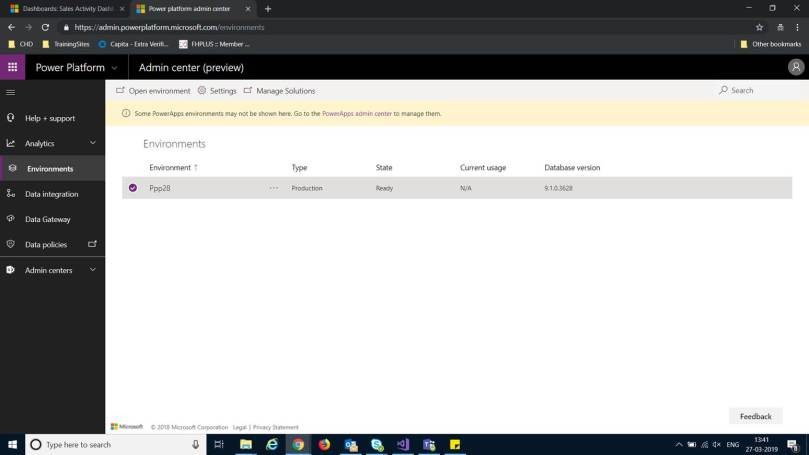
  4. Click on Environments on Left hand side Navigation. It will show all your environments.
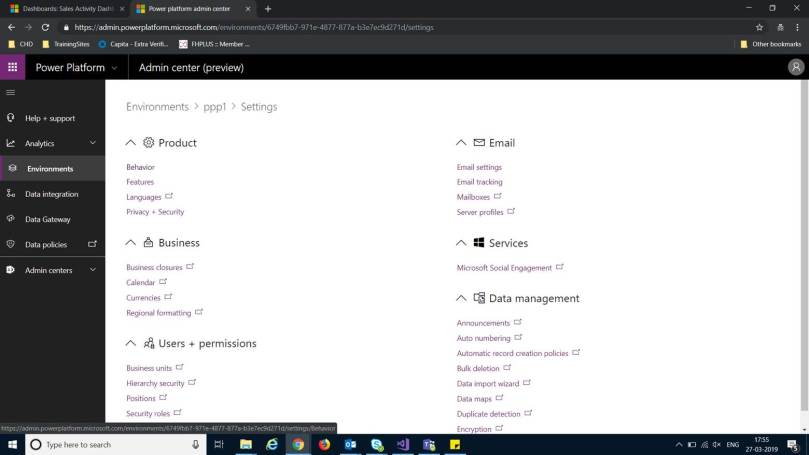
  5. Select environment( MS CRM Organization Name) and click on Settings on command bar.
  6. Under Product Section – > Click on Behavior –
    UI04
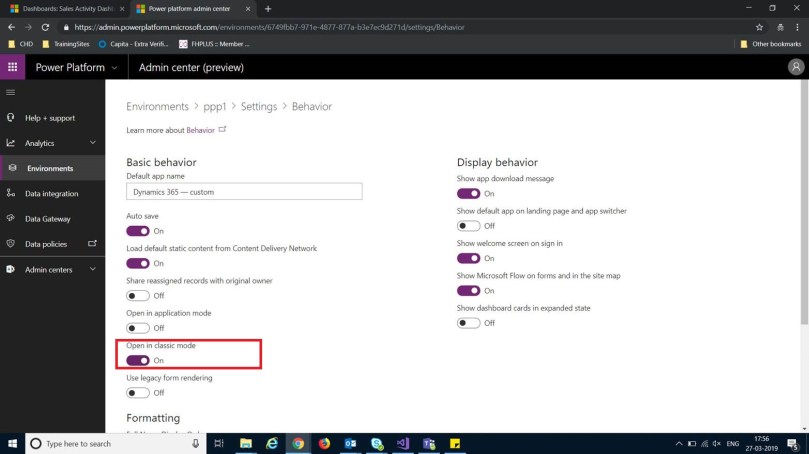
  7. Set Open in Classic Mode -> On
    UI05
  8. Save your Setting.
  9. Login to your CRM Organization by using our traditional way –
    https://orgname.crm.dynamics.com
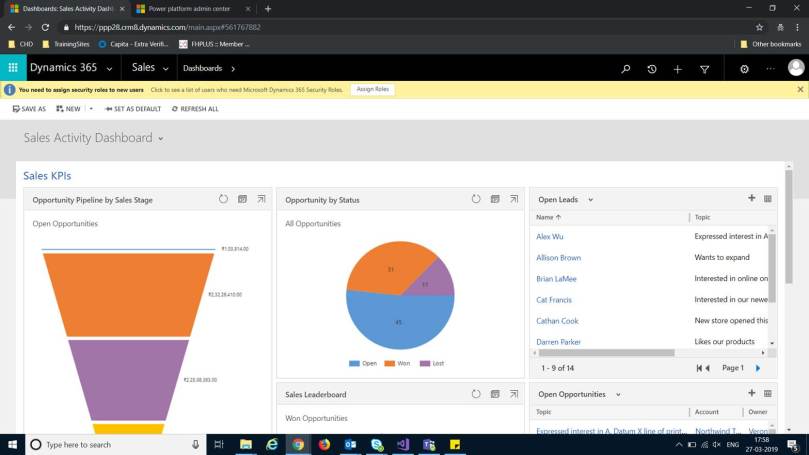
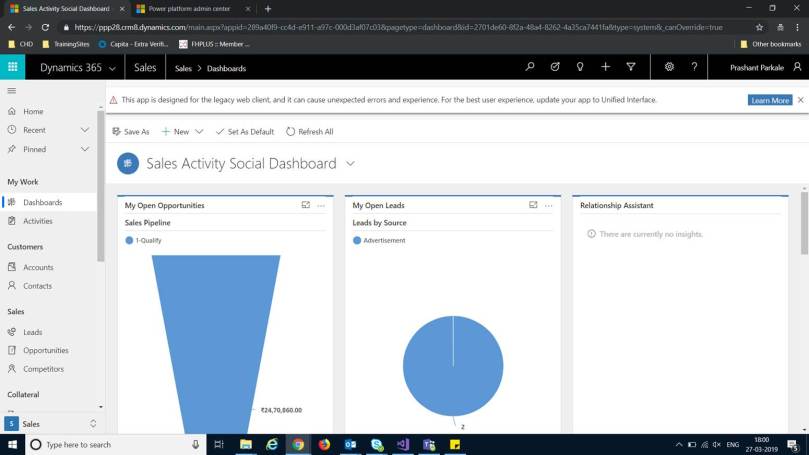
  10. You will be able to see your classic mode of MS CRM now with all the features you are familiar with-
    UI06


Continue with your development with classic mode…

Enjoy Ms CRM!!!